Author Archives: lkeyes70

Adding Multiple Users to FreeNAS Part 1

1. Figure out what the account names and passwords are going to be. For this example, I’m just going to create a bunch of student accounts, with lame passwords, based on colors, viz…

Student01 – Blue
Student02 – Orange
Student03 – Green
Student04 – Brown
Student05 – Gray
Student06 – Red
Student07 – Black

Etc.

2. Using a terminal program, Log into the FreeNas server using the SSH service. (Make sure SSH has been started on the FreeNas server, via the Services tab.) Using the Mac’s terminal program, you can login with the following command:

ssh 192.168.xx.xx -l root

In Windows, use the free PUTTY program, which has provisions for using SSH to log in.

3. Once you are in, change the directory to your shared student volume.

cd /mnt/StudentData

4. Now you need to use a text editor to create a couple of files. The first file is a list of the user accounts.

nano userlist.txt

Add the account names, one per line.

Student01
Student02
Student03
….

Save this file.

5. Now create a shell batch file which creates all of the student folders.

nano makestfolder.sh

#! /bin/sh

while read username
do
echo $username
mkdir $username
done

Save this file as makestfolder.sh

6. Flag the batch file as executable
chmod 755 makestfolder.sh

7. Now you can run this shell script, using the file of user names for input.

./makestfolder.sh <userlist.txt

This will output a list of names of each user. As long as you don’t see anything weird, the folders will also have been created. You can check by simply doing a directory listing.

ls

This should show all of the folders.

8 Finally, you’ll need to create one more shell script, which we’ll use after we’ve added the user accounts to FreeNas.

nano fixperms.sh

#! /bin/sh
while read username
do
echo $username
chmod 711 /mnt/StudentData/$username
chown $username /mnt/StudentData/$username
done

Save this, and again, change the file permissions on it to allow it to be executable.

chmod 755 fixperms.sh

Obviously, creating these two shell scripts is a one-time thing… we’ll reuse them any time we add new folders.

Now, having created your student folders, you can go back into the FreeNas web interface, and actually create the user accounts. When doing this, you assign the “home directory” for the account to the folder that you’ve just created. (See Part 2)

Display Percent on Microsoft Access 2010 forms

Problem with displaying percentages in a Microsoft Access 2010 form. You’d think this would be an easy, and intuitive thing, but different versions of Access handle it different ways.

I have a field for FTE (full-time equivalency) which should be a percentage. So, for example, if a part time worker works three days a week, they are 60% FTE. I want to store this in my Access 2010 contacts table. This turned out to be much more difficult than I anticipated, but one solution which seems to work is the following:

1. In the table design, define the field as Data Type = Number.

Set the field properties as:

Field Size = Double.
Format = Percent
Decimal Places = 0

2. Test this by entering data in table view, and it should display correctly, and also allow you to enter whole numbers. So for 100%, you’ll just enter “100” and for 60% you’ll just enter “60”. It will look like this:

3. Add the FTE field to the form, by dragging it from the “Add Existing Fields” List.

Microsoft Small Business Server 2011 — Install Quirks

Well, maybe not quirks exactly, but, there do seem to be a few points of interest.

To review, Microsoft Small Business Server 2011 is a bundled combination of the following:

Windows Server 2008
Microsoft Exchange 2010
Microsoft SharePoint 2010
Microsoft SQL Server 2008

In its usual confusing way, Microsoft can’t offer a single version of this but rather, they have three editions. There is Windows Small Business Server Standard (with the software described above), Windows Small Business Server Essentials (which substitutes cloud versions of SharePoint and Exchange for the bundled server versions that come with Standard). There is also an supplementary Small Business Server Premium Add-On which adds another SQL-Server box for running back-end database applications or web sites. I’ve been working with Standard. This can serve a maximum of 75 users, which I’m sort of assuming means 75 currently connected users, and that you could configure more than that number.

On installation, the SBS server wants to be a DNS server as well as a DHCP server. It is helpful to have the server connected on the LAN, with a working internet connection. If, as in my case, you run a separate DHCP server (the box which doles out IP addresses for workstations as they come online), then you need to disable it temporarily while setting up the SBS machine. Otherwise, SBS will complain and fail to configure its connections to the internet.

Another quirk is that when you first install the operating system everything is installed on drive C: including users shares, Sharepoint folders and Exchange mailboxes. Presumably you’ll want these to reside on a separate set of disks, or partition from the O/S partition, and there is a series of “wizards” that allow you to accomplish this without pain. Once the folders are moved to the data drive or partition, the default new user folders are created in the correct location.

The SBS server must be the top level domain controller in a Windows network. Other Windows servers can be secondary domain controllers but not primary. There is an elaborate multi-page migration methodology which is supposed to allow you to migrate users for SBS 2003 to SBS 2011, however much of the discussion on the technical boards suggests that the migration is a nightmare. So, in the two instances that I’ve been upgrading, I’m starting from scratch. I don’t went to be caught in the middle where the old installation isn’t working and the new one isn’t ready for some unknown or odd reason.

I’m still on the fence as to whether SBS is a good idea. If you’ve already got a POP eMail server going, which has Spam filtering and all the standard features provided by an ISP, managing Exchange on a local server just seems to me to provide an opportunity for additional work and maintenance. It also places all critical applications on a single piece of hardware. On the other hand, Exchange has evolved as a pretty nice calendaring and eMail server, and SharePoint, for those who can use it, works well as an internal knowledge base. SBS includes other tricks, like VPN capability, OutLook web access for accessing your OutLook mailbox from the web, and lots of management wizards which tend to ease some of the burden of maintaining things.

As a practical matter, servers are pretty reliable these days… and you have to go out of your way to practice and rehearse a disaster-recovery scenarios because they just don’t happen that often.

OSX Lion from Apple – Where’s The Beef?

Apple released OSX Lion, the latest version of their computer operating system today, and I was able to download and install it without incident to my aging MacBook, (circa mid 2007). So, what is all the fuss about? Actually, I suspect that it is mostly under the hood. The user interface changes in OSX Lion, notably the addition of the Launchpad, an iPhone-like full screen which shows all applications, and Mission Control, which combines aspects of the previous OS’s Dashboard, Expose and Spaces, seem relatively minor, and you can pretty much avoid them.

Mind-Manager 9 for the Mac
Doesn’t display the “full screen” arrows in the upper-right hand corner, but otherwise seems to work fine at first glance. There have been complaints on the MM user forums about Lion compatibility. Required the installation of a new Java Virtual Machine.

Scrivner
I’m still working with the trial version of this. An update included the full-screen icon.

EverNote
Required an update. No icon for the full screen.

Parallels
The current version is Build 12094. I upgraded to this. (Version 6.0.12094). Parallels is pretty worthless on my laptop these days, as I only have 2 megabytes of RAM, which turns out to be pretty tight when attempting to run Windows 7. On the laptop, I find myself using BootCamp.

OSX Lion Server
There were rumors that the Mac OSX server software would simply be included with the Lion update. This used to cost $499. However, it is now available as a $49.00 set of applications as an add-on. I was particularly interested in the PodCast Producer application, which I think is available only through buying OSX server. This is now available in a free download of “server tools”, which, presumably, can be downloaded and installed on a workstation to manage servers on a network. Just for grins, I downloaded these, and installed, but the PodCast Producer (now actually called Podcast Composer) crashed several times when I attempted to run it.

Mac Mail
There are minor changes to Mac Mail, in how it displays by default. The default configuration displays three columns, with the left column showing mailboxes and folders as before, then a column which displays the list of eMails. A third column displays the contents of each eMail. Since I don’t like to display contents by default, and I think it is major safety hazard as it opens each eMail, I reconfigured the pgoram to turn off the third pane. So, Mail now looks about the same as before.

Calendar
There are several changes to the Calendar program, but most obviously it has a kind of faux leather “blotter” frame around the calendar days. I spent almost a half-hour searching on Google trying to figure out how to get rid of the damn thing, it looks really tacky, and worse, it doesn’t appear to be changeable.

Address Book
This now looks like a “paper” address book, with a sleazy leather “binding” which matches the calendar.

OmmWriter
No change. OmmWriter works in full screen mode anyway. Seems to work fine in Lion.

More Updates
But wait….there’s more! Running the Mac update application will fetch updates for iWeb, iTunes, iWork, and some third-party things like printer drivers.

More than you want to know
At Cult of Mac, they’ve sketched out many of the changes. They might be a little breathlessly enthusiastic. Anyway, I’m glad I upgraded, and I’ll be interested to see how it goes on my iMac.

U.S. Broadband – Not Much Progress

Oh dear. As I was poking around in my own blog looking for wisdom about Microsoft Access, what should I find but this post, entitled U.S. Loosing Edge in Broadband.

The post was from June of 2005. Yikes. Clearly, “we” haven’t made the case in the U.S. for extensive broadband. However, a recent video from PBS does a really nice job describing what is going on in other parts of the world.

Video Link at: http://www.pbs.org/wnet/need-to-know/culture/video-high-fiber/9263/

Plus the original link to the article in Foreign Affairs works fine.

The interviews, in fluent idiomatic English, by non-native speakers, were sobering.

While we in the U.S. are fighting three unnecessary wars, agonizing about how to pay for health care, fighting culture wars over things like the president’s birth certificate, and expressing outrage that we are paying one-third what Europe is paying for gasoline, other first-and second-world nations are eating our lunch in terms of preparing for the economic future in which our children and grandchildren will be living.

P.S. There is a lively discussion in the comments section on the PBS link. And they cited a Harvard study:
http://cyber.law.harvard.edu/sites/cyber.law.harvard.edu/files/Berkman_Center_Broadband_Final_Report_15Feb2010.pdf

Spicy Server Pix

Shocking! Server Interior Revealed!

Click on the images to see them full size.

Here’s a picture of my new Dell T110 server, with the cover off.

Here’s a little more detail. You can see the two drives mounted on the left hand side, with two conveniently vacant drive bays for a couple additional SATA drives. Upper middle are the four memory slots, each filled with a 2 megabyte chip for a total of eight megabytes. All the black stuff on the right is the shroud covering the heat sink. The unit is absolutely silent.

Finally, here it is in the final configuration. I’ve got an older Maxell external USB 250 megabyte drive as a backup device. The Small Business Server 2011 backup is much improved over Windows backup software that came with earlier Windows server software…almost as good as the Mac Time Machine.

This is the first purpose-bought server that I’ve bought in more than ten years for my business. I had a couple in the nineties. Then for two or three iterations, I’d buy Dell Precision workstations to use as my personal workstation, and then I’d bump them down to be a server. All of these machines have been very reliable. I even used one of the Optiplex GX270 desktops as a production server for more than six months.

Tech Friday: More on Windows Small Business Server 2011

So, after fiddling for a week, I decided to commit, and make the SBS 2011 my real office server, at least for awhile. Amazing how much tweaking is required. Out of the box it doesn’t work out of the box, and despite the presence of numerous wizards and checklists, I find that it requires a fair amount of network knowledge to get things up and running. Ideas:

1. Under the covers, SBS 2011 uses Windows Server 2008, and Microsoft Exchange 2010.

2. In its default state, SBS assumes it will control everything, even unto DHCP. DHCP is usually enabled by default on most routers. It is the function that assigns an internal IP address to each workstation as it comes on the network. I prefer that the function stay with the router, so if the server is off for some reason, workstations can still get a legal IP address to be able to go out on to the internet. For the moment, I’ve acquiesced and given that function to SBS.

3. Since I’m planning to run Exchange, I needed to have a domain assigned to my SBS server. I have a fixed outward facing IP address from Comcast, my internet service provider. I assigned a “third level domain name” to my SBS server. This is often done for individual machines within a domain. So, for example of your company’s domain is kettleprises.com, you mail server might be mail.kettleprises.com, and your sbs server might be sbs.kettleprises.com. Third level domain names do not usually cost extra. I then configured a DNS server on the SBS box using the assigned third-level domain. So far, I haven’t been able to find my domain mapping using nslookup, so I’m a little worried that something is awry.

4. The above is not to be confused with the “windows domain”, which is a single name for the local area network’s SBS machine. I named mine ghq. SBS then translates this to ghq.local which is assigned to the server’s internal ip address.

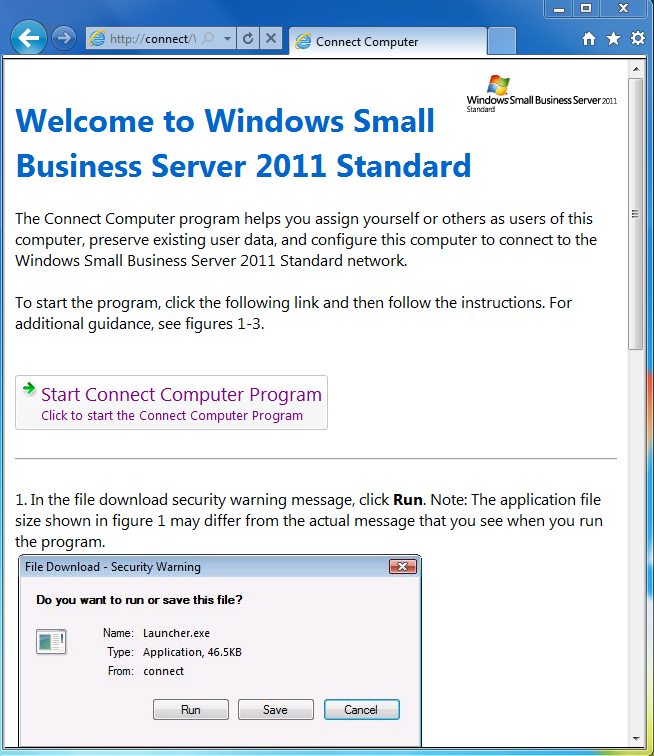
5. The next issue, is to get the network workstations connected to the server. Before doing that, the help file suggests creating the user accounts on the server. Once you do that, you can go to the individual workstations, and run the web browser, and try to find http://connect. If this is successful, then you’ll see the following screen:

This is only a link to download a “launcher.exe” file which is a script which connects the computer to the network. If there are local user profiles available, it allows you to choose one to migrate to a domain account. (Again, showing essentially that the SBS developers assume that this is the first server of a one-server network, and you would only be migrating local workstation accounts to domain accounts anyway.)

If you can’t bring up the web page, then something is misconfigured, somewhere. It took me several tries to make sure everything was working as expected. I thought the last loose end was the fact that my third level domain name hadn’t propagated yet, but between the time I started writing and the time I’ve finished, it now appears under NSLOOKUP.

Laplink PC Mover migrates Windows Users to new machines

Moving users to new Windows machines is a pain. PC Mover helps automate the process, and it even assists when you are migrating users between Windows versions, such as upgrades from Windows XP to Windows 7.

Despite being lead to believe otherwise, PC Mover does not fully migrate OutLook accounts. Rather it will migrate the account server connection but it does not migrate the OutLook messages. I confirmed this with their technical support people.

You can migrate messages by copying the OutLook.PST file from the old machine to the new machine. I found I had to do this each time I migrated a user from Windows XP to Windows 7 on a new machine. Everything else, however, migrates smoothly. To do this:

1. Make sure the new machine is connected to the network.
2. If you can (or need to) register the computer with the Microsoft Domain Controller (under Control Panel, go to System ->Computer Name, and see that the computer is a member of the domain.
3. Log in to the new computer with the target user’s domain account. This will create a new user profile on the new computer.
4. Log off, and log in again as the Domain Administrator. This will give you rights to perform the migration on the new computer.
5. Install and run PC Mover on the new computer.
6. Log in as an administrator on the old computer.
7. Install PC Mover on the old computer. (I use a thumb drive for this).
8. Run PC Mover on the old computer. It will find the new computer on the network .
9. Choose the user’s domain account on the old computer for migration to the new computer. (This is the reason for step 3 above. Before doing this, I received an error message from PC Mover on the old computer saying that it can’t migrate the domain account. I’m presuming that is because the account didn’t exist on the new computer.)
10. In general, you don’t want to migrate old versions of applications that won’t be used on the new machine. So, these being Dells, I didn’t migrate things like Roxio CD Creator from the old machine to the new one. Also, if you already have applications installed (Office 2007?) on the new machine, you don’t need to migrate the whole application again.

One thing that is helpful is there is a rollback function, so if the migration doesn’t work as expected, you can roll back and try again with different settings.

Tech Friday: Installing Windows Small Business Server 2011

I’ve received  a Dell T110 server, to install here at Microdesign GHQ.  I originally got it with two 250 gigabyte disks, I’ve been fooling around with various images and DVD disks trying several ways of installing it.  Some ideas:

1. SBS 2008 or 2011 requires a minimum of 8 megabytes of RAM, with twelve megabytes recommended for a production server. One reason I broke down and bought new hardware is that I had no recent Windows workstation that I could repurpose that could use more than 4 megabytes of RAM. I tested several candidates using the Crucial on-line tester. Then in desperation I went the Dell web site, and tried there as well. My latest workstation hardware, circa 2005, was too old. 

2. Being a cheapskate, I configured the server with two 250 gigabyte drives, thinking I’d mirror the drives. But it looks like Dell wants 9 megs or so for a utility partition, and that  the Windows installer won’t mirror anything before installation, so the operating system itself will go on a single drive. I’ll configure the second drive for data for starters, and then buy another one to mirror, so that I have mirrored data disks. This is what we ended up doing with the FreeNAS server that we’re using for student data; the O/S is on its own drive. Presumably, if that drive fails, then you could reinstall on a fresh drive, and the data remains intact on its own array. 

The only way around this predicament is to get a RAID controller that does all of the mirroring or RAID in hardware. The controller then “presents” the array as a single drive to the operating system.  

3. The higher RAM requirement also precluded playing with the O/S in a virtual machine… at least with Parallels.  This may be a mixed blessing. Even on dedicated hardware the installation is taking over an hour from DVD. So, in a VM the whole thing would be really slow.

4. Using the technique described last fall  for Windows embedded booting, I’m preparing a USB drive as an alternate boot media, just to see if that works, and if it does if it is any faster. This involves formatting the USB drive, and copying the bootloader files from the Windows setup DVD.

5. The downloaded .iso DVD image for Windows SBS 2011 is larger than the typical 4.7 gigabyte  single-sided DVD. I had to go to Staples and buy double-sided DVDs which hold 8.5 gigs. I never knew they existed, but I’m happy to see that both my Mac Superdrive, and the server DVD reader can read them.