Category Archives: Uncategorized

Sync Google Apps with Microsoft OutLook 2013

I installed Microsoft Outlook 2013 the other day, along with the rest of Office 2013. I’m only about two years late, right?  Office 2013 offers little over Office 2010, but there is a somewhat cleaner design (OSX 10.7 anyone?) and really nice animations when windows open and close. Forgive me for saying this, but the interface is more Mac-like, even though it came out two years before the recent updates to OSX and IOS 7.

I originally had OutLook eMail synced to my Google Apps email. Then I wanted to also use the Outlook calendar and have changes made there reflected in my Google Apps calendar which is the group calendar that we use in the office. A quick search found the Google Outlook synchronizer, an application that sits outside of Outlook and runs interference between Outlook and Google apps.

The nice thing about this is that that it doesn’t require you to put in all kinds of IMAP information into your Outlook profile…you simply give it your Google Apps eMail address and off it goes and downloads everything from Google Apps, creates a new profile within OutLook, and then uploads everything into mailboxes in Outlook (see screenshot). If it works, it will great. I includes your contact lists, shared calendars, co-workers calendars, notes, and tasks.

The poor mans’s Exchange Server? 

If you use Google Apps in the office, and have Windows computers, you could have this running on each machine, and essentially use Google Apps as a back-end Exchange Server.

SmartyStreets – Validate Mailing Addresses

Some months ago I submitted a mailing list file to our mailer (we use Quad), and I was somewhat taken aback to get their report that over 5% of the addresses that we sent to them were invalid or incorrect.. I was thinking this wasn’t too bad a figure, but they informed me that “people who knew what they were doing” would achieve valid rating of close to 100%. My thought was to do some “pre-validation” before sending the mail file to Quad. Turns out this can get expensive. Then I found SmartyStreets.

SmartyStreets is a web-based address validator for U.S. addresses. Using the US Postal Service official address database, SmartyStreets will validate any address that you send to it with varying amounts of correction.  Addresses are classified in a number of different ways, including:

  • Nomatch             The address is invalid.
  • Mailable              The address is valid and can receive mail. 
  • Mailable-Vacant:  The address is valid but vacant
  • Match-Inactive.   The address is valid but inactive. 

SmartyStreets has a one-off web interface which allows you to validate addresses one at a time on the fly. http://www.smartystreets.com. It will supply a nine digit zip code for valid street address, and it will suggest addresses nearby if you submit an invalid address. In short, if SmartyStreets returns an address, it will most probably be mailable. That’s what I’m hoping, anyway. I just sent a new file to Quad, and we’ll see what the accuracy is.

Click to Enlarge.
The web-based interface returns, not just a corrected address but additional information such as lattitude and longitude of the address, whether it is commercial or residential,and the address’s time zone and congressional district. 
Smartystreets will process lists of addresses. You can simply paste in an ASCII comma-delimited list or an Excel file containing an address list, and SmartyStreets will return the list with in a mail/no-mail format, or with about 30 fields of additional information. 
SmartyStreets frequently donates their services to churches, schools, libraries, and many non-profit organizations. They have extensive documentation that explains how the validation process works, and what the results of your file can contain. And they have an API (an application programmer’s interface) which will return results in XML or JSON format.  
A great addition to the mailing toolbox.  

FileMaker: A Quick and Dirty SQL Query Screen

How to create a quick and dirty SQL screen for a FileMaker database:
1. Create a data table. I call it SQLWB. Give this table two text fields: “Query” and “Result”. Both of these will be text fields.
 2. Modify the layout I call it SQL Workbench.
 3. Resize the two fields to show a larger amount of text. I add a scrollbar to the end of each field

4. Create a scripts to run the query.  I call it RunSQLQuery.

Set Field [SQLWB::Results; ExeuteSQL (SQLWB::Query;””;””)]


5. Create a script to clear the two text boxes.  I call this script ClearResults.

Set Field [SQLWB::Query;””]
Set Field [SQLWB::Results;””]

6. Add two buttons to the layout; one for each of the scripts.

The result will look something like this:


Note that this isn’t a full-blown SQL implementation, it will only respond to SELECT statements. (You can’t INSERT or DELETE, for example.   Also, if there any problems with your SQL syntax, the result box will only show a question mark.

Odds and Sods

Miscellaneous Items

I’ve been upgrading my Dell Optiplex 620, (this of the noisy fan and the overheating case which always needs to have the top left off. ) from Windows XP to Windows 7. I used an image downloaded from the Microsoft licensing web site, and, I think this must be original version of Windows 7 that came out in 2009 or whenever, because it has applied over 150 updates, to the newly installed version, which has taken over four hours to have ready to use. Cripes, haven’t they even heard of version control, or Git?

After casting around for a cloud-based web hosting company,  I’m leaning toward Linode. To start with, their documentation is terrific.

And, speaking of Git if you are trying to get your head around it, here is a great beginner tutorial that describes the theory of Git and doesn’t just give another rundown of all the commands.

Visual Inspiration at Urban Sketchers.

Trello is an uncomplicated way to manage projects. There is an e-Book about Trello, Trello Dojo published by Daniel Root and published by Leanpub

As a professional nerd, occasionally I’ll run into a website, utility, or service that has potential to help the day-to-day lives of people not only the IT field, but in about any line of work. Or, perhaps even people in no line of work. Trello is just that sort of service. Their website describes it: “In one glance, Trello tells you what’s being worked on, who’s working on what, and where something is in a process.” Being free, easy to use, and constantly updated, giving Trello a try in your next project or process is a no brainer. You have almost no risk and a lot to gain.

The book comes with pointers to more than a dozen Trello templates; projects that are already set up. There is also discussion of feeding a Trello board with inputs from other sources, such as an RSS feed or eMail. An example of such an application is the Poor Man’s Customer Service tracker, which takes eMails sent to your customer support web address, and automatically creates a Trello card for each issue.

Tech Friday: API Programming 101

I’ve working on an add-on application for the Shopify e-Commerce web service, that allows you to have a web store completely in the cloud. What we’re trying to do is to have the cart check-out function call a custom application which calculates shipping costs, because we have a slightly idiosyncratic way of dealing with those that isn’t accommodated by the standard Shopify functionality.

Shopify provides an API (Application Programming Interface) to their web site which allows developers to add extra functions to a customer’s web shop. Entry to the API is
provided in several different ways:

  • External Apps: Shopify calls an external function hosted at a publicly available web address. Presumably the same app provides functions for multiple customers and shops. There are bunch of these advertised on the Shopify web site. Some are free, some are supported by Shopify and some are built by third-party programmers, who make them available for $5.00 – $60.00 per month.  
  • Internal Apps: These are similar to internal apps, but are available for a single store. 
  • Embedded Apps: Haven’t quite figured this out yet, but my guess is that somehow this allows an app to be embedded in a single store, and hosted within the Shopify web server, thus obviating the need for a separate web server, and public web address.

I quickly wired up our shipping calculation in PHP. Its about 12 lines of code. The problem has been to try to find how to connect it to our Shopify check-out cart. Along the way, however, I’ve found some interesting tools.

It is a little ironic that some of the best PHP programming tools seem to exist primarly in Windows versions, but that most of the deployment of PHP happens on Linux/Apache web servers.  Ideas:

Notepad++   The favorite of my boss, but as I said to him, “its like writing with a stick in dirt”.  I use it all the time though for general editing of ASCII files.
JetBrains phpStorm I have the thirty-day trial for this, which also runs on the Mac. Looks promising.
CodeLobster for PHP Just found this free PHP editor which also has some support for javascript and CSS.

To create the publicly available web address that will host my app, I got an account with Heroku 

To examine calls to and from web services, I downloaded the the Firefox Plug-in HttpRequester.

To examine the web traffic, I use Fiddler.  To see web traffic in greater context (and to see all the data you’re sending to the NSA…)  I use WireShark.

All of the above are Windows applications. Other suggestions cheerfully accepted.  (For example, on the Mac, WiresShark uses an external Xquartz graphics library, which has to be launched separately. The whole thing seems a little flakey, but it works, all the same.)

Tech Friday: XP is over, Long Live 7

retro_robotWith the impending demise of support for Windows XP due in April, one solution I investigated was replacing an entire workstation with a refurbished machine supplied by NewEgg. They had a several Lenovo units for sale for $219, including shipping. These included a 250 megabyte hard drive, a 2.8 or 3.0 dual-core Intel processor, and 4 Gigs of RAM, and Windows Professional 7.

We received the unit promptly, and as I unboxed it, I noticed that it appears to be an IBM-branded unit built by Lenovo of about vintage 2009. This is a little older than I would have hoped, but the Windows 7 setup seems to be going smoothly so far. The unit has a Windows “Microsoft Refurbished” sticker on it which has a valid Windows 7 code. There was also a “Made for Vista” sticker on the case, which I’ve scratched off. Yikes.

So far, main irritation is that the case is so small that there is no room for a full length expansion card. We normally have dual monitors for everyone, so expanding the single VGA motherboard connector may prove to be a challenge. Still, a machine with the hardware specs above, and Windows 7 for a little over $200.00… that is inexpensive. Comparable new machines were in the $600 range.

I’ve had mixed results with refurbs at least with Dell. A couple of Dell SX series went belly up, and one was dead on arrival. A recent Optiplex 620 series seems to overheat. I’ve had two full tower refurbs from Dell which have been just fine, as well as an Inspiron laptop. So, let’s hope the Lenovo, er, IBM is solid.

But back to XP. Isn’t it odd that although Microsoft is trying to entice users to move to the cloud, and subscription-based software, it can’t seem to be in a position to offer a subscription-based support plan for $20.00 or $50.00 a year for XP. John Dvorak outlines a plan here.

I always thought Microsoft was in the business of making money. If you are a shareholder, go to the next meeting and ask the bigwigs why Microsoft is leaving what can amount to billions of dollars on the table regarding Microsoft XP.

Microsoft is too dumb to realize that it can effortlessly monetize Windows XP using the beloved software subscription/rental scheme the company keeps discussing, but apparently has nothing but trouble trying to implement.

I am going to describe a multi-billion dollar idea that Microsoft must consider.

There are still approximately 500 million XP users—an estimated 29 percent of the computers in the world. Many do not want to upgrade to anything new. They are happy campers.

These folks, according to a variety of reports, include many banks and most of the ATM networks. Smart corporate money knows that if you have something that works great for a single application you do not swap it out. You run it until something comes along that would save you enormous amounts of money. This is not happening with banking software.

Mining the Social Web

O’Reilly recently held a 1/2 price sale for electronic versions of some of their newer books. I bit on Mining The Social Web 2nd Edition by Matthew Russell. Having just started the book, I’m not yet in a position to really comment, but I was intrigued by several aspects. Basically the book is about using the Python programming language to access social media sites through their API (application programming interface).

Instead of having the reader set up Python on your own machine, he created a virtual environment that could be run on any platform using a program Vagrant. The VM uses a Python teaching framework called IPython Notebook which allows you to have interactive code examples embedded in text.
The combination of the virtual machine, Vagrant and IPython Notebook obviates the need to document and maintain all the possible permutations of each platform (Mac/Windows/Linux) and version of Python, all the related ancillary libraries, and whatever is needed to install and maintain updates. 
The repository for all of the Python code used in the book and the setup for the Vagrant virtual machine is on GitHub. GitHub is a cloud-based version control system, with a lightweight social media overlay that allows people to collaborate on programming projects. 
Vagrant can use different virtual machine software, but it just happens that the setup for the iPython Notebook provided uses the command-line version of VirtualBox. Vagrant installs an instance of Ubuntu 12. with all of the provisions for hosting Python and the iPython Notebook, as well as a web server which makes this available on port 8888.  So, the installation sequence for Windows is:
1. Download and install VirtualBox if you haven’t already.
2. Download and install Vagrant.
3. Establish an account on GitHub
4. Download the GitHub client. This includes two applications, the GitHub terminal, and the GitHub GUI Manager.
5. Using Git, “Clone” the GitHub directory for Mining the Social Web Second Edition. This makes a copy of the GitHub directory on your local machine.
6. Start a command line session, and CD to the MTSWSE directory (whatever you’ve named it) Run vagrant up. This starts the creation of the virtual machine, and the full provisioning. It is about a twenty minute process. And, to be sure, given all of the output that it generates, it looks as if a multi-hour job has been automated.

A couple troubleshooting tips. If Vagrant looks like it is installing “the default VM”,  or if you see a reference to PROCESS32 you’ve somehow missed the GitHub part… maybe the directory is wrong? What you should expect to see instead is PROCESS64.

If correct, the provisioning process will end with a line
DEBUG: Exiting. 

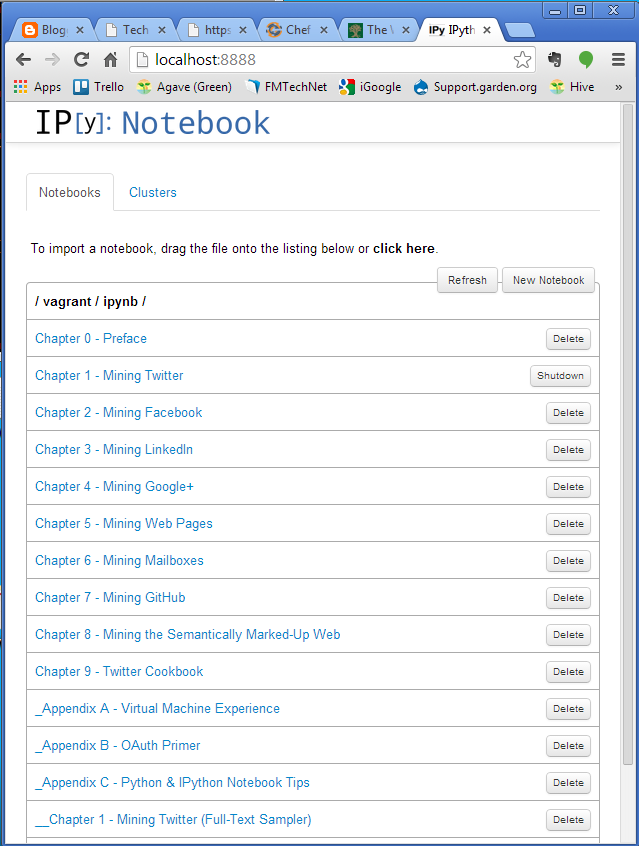
The real sign of success is to open a web browser and navigate to http://localhost:8888
That will bring up the main page of the IPython book..

My favorite error message to date:
DL is deprecated, use FIDDLE.  

The Vagrant documentation refers to another program called Chef. Chef manages the provisioning of servers, and is used especially in cloud,VM and multi-server installations to manage all of the server instances. 

Can’t Connect: HeidiSQL + VirtualBox + mySQL + Ubuntu

After creating a new mySQL server within an Ubuntu guest OS running on VirtualBox, (how is that for a mouthful?) I wanted to connect to the server with HeidiSQL, my toolbox of choice when dealing with basic SQL operations. I expect that I would have the same problems attempting to connect with similar  client software, such as mySQL Workbench or PHPmyAdmin.

The symptoms of the problem showed up in an error message, generated by HeidiSQL:

Connect Error (2003) Can‘t connect to MySQL server on ‘192.168.219.107‘ (10061)  

So,  more or less in order, I did the following:
1. Create a mySQL user with an identical name and password as the Ubuntu user account. To connect to mySQL, you need to have two valid accounts:  a.) a valid Linux user account,  and b.) a valid mySQL user account. On Ubuntu, these need to be same….because you only get one chance to pass through a name and password when logging into a server from HeidiSQL. This is done by logging into the mySQL client on the Ubuntu box, and performing the following:

GRANT ALL PRIVILEGES ON *.* TO ‘username‘@’localhost’ IDENTIFIED BY ‘password‘ WITH GRANT OPTION;


GRANT ALL PRIVILEGES ON *.* TO ‘username‘@’%’ IDENTIFIED BY ‘password‘ WITH GRANT OPTION;

Exit the mySQL client, and then reload the grant tables, using the mySQL root user and password 
mysqladmin -u root -prootpassword reload 

Note that the both the user names and password are case-sensitive, and the mySQL user’s name and password must be identical to the ubuntu user’s name and password for Heidi to be able to log in. 


2. In VirtualBox, be sure that the network settings for your network card are for a bridged adapter. What this does is it makes the VM act like another machine on your current network. The VirtualBox default is to create its own network and subnet which are inaccessible from the host machine.  (but see note #1 below) 

3. Once you’ve taken care of the above items, restart the VM, and log in at the console. You need to edit the mySQL configuration file to reflect the new IP address of the VM.  Log into the VM. Usually the opening screen will show the current IP address,  in the line: 

IP address for eth0:  192.168.219.107.    

If you miss it or need to find it again, just run

ifconfig | grep “inet addr” 
This will probably show at least two lines. The first one is the current IP address.   

inet addr: 192168.219.107 Bcast:192.168.219.255 Mask:255.255.2550 
inet addr: 128.0.0.1 Mask 255.0.0.0 

Now that you know the address, you can add it to mySQL configuration file: 
sudo nano /etc/mysql/my.cnf 

Scroll down in this file until you find an entry for the bind address. This will look something like: 
bind-address = 127.0.0.1 

Change this so it it listens on the address of your VM.  I just comment out the bind-address line, and add the new line: 

#bind-address = 127.0.0.1
bind-address  = 192.168.219.107

Restart the machine.
sudo shutdown -r now 

This reloads everything, including the mySQL daemon so that it listens on the new IP address. 

That’s it. You should be able to log in with Heidi now.

Notes:
1. You could probably leave the default networking setting in place, (it is NAT), and the VM will be assigned a NAT address along the lines of 10.0.2.15.  You’d still probably want to edit the mySQL file to reflect this address, and you might also want to make sure that you forward the mySQL port 3306.  I just haven’t tested this, so that I can’t vouch that it will work.

2. Of course, in a production situation, you’ll want to choose a fixed IP address for the network address. This might involve your main router and firewall, so you may need to discuss this with the sys admins.

Anyway, now that I’ve actually got this thing running…I’ve got to get back to mySQL!

Tech Friday: Note from the Cranky Sysadmin

1. With VirtualBox chugging along, I’ve have developed super SysAdmin (systems administrator) powers, and created and destroyed dozens of Linux servers and desktop workstations using both Ubuntu and Red Hat operating systems. 

2. It takes over an hour to format an 8 gigabyte USB thumb drive in Windows 7. A quickformat will take just a couple of seconds. 

3. The Boss took a look at my old Linux books, (copyright 2002) and laughed a mirthless hollow laugh. “Those are really old books”.  I said, “yes, they are, but they happen to describe your really old operating systems.” 

4. The object of all of this virtual goodness is to upgrade the hardware on a currently production server that is around eight-years old. The problem is that the operating system, mySQL and PHP are equally old. Our idea was to transfer the existing production server, on to the new hardware, and then worry about upgrading, as we expect that some of the PHP will need to be rewritten. The problem is similar to the proverbial “change a tire on a car at 70 miles per hour”. To date, I’ve been working on several separate scenarios:

  • Shut down the server, and do a bit-copy of the old system to the new system 
  • Leave the server running and do a copy to the new system over the network.
  • Create a new empty server with the old versions of the OS (Redhat 7) and mySQL (3.23). Dump the mySQL data off the old server and restore to the new server. 
I’m pretty confident the first option will work, as long as the server can be booted from a CD or USB, and as long as it can be rebooted once we’ve taken it down. 

As near as I can figure out, the server has two mirrored 40gigabyte drives, which result in a single RAID drive at /dev/hdd.  In Theory… I can do a copy of /dev/hdd to the new hardware and boot.  
[root@hive root]# fdisk -l
Disk /dev/hda: 40.0 GB, 40020664320 bytes255 heads, 63 sectors/track, 4865 cylinders
Units = cylinders of 16065 * 512 = 8225280 bytes
Device Boot Start End Blocks Id System
/dev/hda1 * 1 191 1534176 fd Linux raid autodetect
/dev/hda2 192 1211 8193150 fd Linux raid autodetect
/dev/hda3 1212 1721 4096575 fd Linux raid autodetect
/dev/hda4 1722 4865 25254180 f Win95 Ext’d (LBA)
/dev/hda5 1722 1912 1534176 fd Linux raid autodetect
/dev/hda6 1913 1977 522081 fd Linux raid autodetect
Disk /dev/hdc: 40.0 GB, 40020664320 bytes
16 heads, 63 sectors/track, 77545 cylinders
Units = cylinders of 1008 * 512 = 516096 bytes
Device Boot Start End Blocks Id System
/dev/hdc1 * 1 3045 1534176 fd Linux raid autodetect
/dev/hdc2 3045 19301 8193150 fd Linux raid autodetect
/dev/hdc3 19301 27429 4096575 fd Linux raid autodetect
/dev/hdc4 27429 77536 25254180 f Win95 Ext’d (LBA)
/dev/hdc5 27429 30473 1534176 fd Linux raid autodetect
/dev/hdc6 30473 31509 522081 fd Linux raid autodetect
Disk /dev/hdd: 40.0 GB, 40020664320 bytes64 heads, 32 sectors/track, 38166 cylinders
Units = cylinders of 2048 * 512 = 1048576 bytes
Device Boot Start End Blocks Id System
/dev/hdd1 1 38166 39081968 83 Linux
The crankyness is partly of my own making, and partly, just Linux, I think. For every command there is a separate program with dozens of options making it almost impossible to memorize anything. Since everything I’m doing at this stage doesn’t involve routine or repetition,it makes little sense to invest time into doing any scripting, which is, as far as I can tell, the traditional way a Linux guru copes with the command line. Usually after six months of being immersed in a foreign language, it begins to Make Sense. (that worked fine before). 

But Linux remains elusive. That’s where Virtualbox comes in; you can rehearse operations and try things out.       

VirtualBox: Running Headless

Following up on the previous discussion of running VirtualBox from the command line, the next task is to be able to run a remote VirtualBox session, that is, a virtual machine hosted on a remote computer which may or may not be capable of a graphics display. In this case, the virtual machine is started from the host’s command line using the headless parameter

VboxManage startvm RHDesktop –type headless 
This starts the vm, and automatically by default starts the remote desktop server, to allow you to log into the machine using Microsoft’s Remote Desktop or any other client that uses the RDP protocol. There are at least two quirks regarding the log in with Remote Desktop:

1. When configuring the port for RDP, in VirtualBox settings,  use a port other than the default RDP 3389.
(I used 5000).

2. When connecting to the Virtual Machine using RDP, use  the the IP address of the host for the IP address.  Note that the IP address used is independent of any IP address that is assigned to the guest operating system, either as a fixed address or through NAT, when bridging.

(click on the images to see them full-sized.)

There is a good YouTube Video showing this with Windows hosts and guests.

With my RedHat guest, there seems to be issues with the mouse accurately tracking on the remote desktop.  It will be interesting to see if this is a major problem or not.