Author Archives: lkeyes70

Create a new folder from FileMaker with AppleScript

I have a button on a FileMaker form that I want to use to create a new folder within the documents/jobhunt folder. This is one of those things that you’d think would be easy to accomplish, but there is no command within FileMaker scripting to do it. One solution is to use the FileMaker script step [Perform Applescript], and execute the following Applescript.  Note that the dialog which allows you type in a folder name is an AppleScript dialog not a FileMaker dialog. 

What is happening within the script, is the following: 
1. Displays a dialog to choose a folder name


2. Copy the folder name to a variable text_returned
3. Assign the path of the user’s Documents folder to the variable p.  
/Users/lkeyes/Documents
4. Append the existing JobHunt folder to the path 
/Users/lkeyes/Documents/Job Hunt
5. Create a new folder within the “Job Hunt” folder with the name myfolder.  

Here is the code from the FileMaker Script:  

Perform AppleScript [ Native AppleScript: display dialog “Enter a folder name for your job:” default answer “” buttons {“OK”, “Cancel”} default button 1
copy the result as list to {text_returned, button_pressed}
set p to path to documents folder as string set p to p & “Job Hunt:”
tell application “Finder”
make new folder at p with properties {name:text_returned}

end tell ] 


Here is the code from the Applescript Editor: 

display dialog “Enter a folder name for your job:” default answer “” buttons {“OK”, “Cancel”} default button 1
copy the result as list to {text_returned, button_pressed}
set p to path to documents folder as string
set p to p & “Job Hunt:”
tell application “Finder”
make new folder at p with properties {name:text_returned}
end tell
Now, I have naturally received advice to use a FileMaker plug-in, which makes this a lot easier. 

It has been awhile since I had a Tech Friday… a day almost exclusively devoted to tech stuff as opposed to accounting, finance, marketing, whatever.

I spent the day installing Filemaker Server Advanced version 12, on a repurposed Dell workstation running Windows 7 and the Windows IIS web server.

Although the FileMaker Server web page claims you can install it in eight minutes, I was actually at it for much of the day, troubleshooting the installation and then trying out as many of the features as I could.

Just what is FileMaker Server? 

FileMaker Server is host software for FileMaker databases, that facilitates running one or more shared databases from a single dedicated server machine.

It includes a backup program to safely back up FM databases even when they are open, a major source of corruption when attempted by standard backup software.

Databases can be accessed in several ways:

  • You can use a Mac or PC desktop workstation running a standard copy of FileMaker Pro. 
  • You can access using PHP, or XML. 
  • You can access through a web browser using “instant web publishing”, which provides a similar interface  to a standard Filemaker Pro interface in a web browser.  This is available only with FileMaker Pro Advanced. 
  • You can access using Filemaker Go, on an iPhone, iPad, or iPod Touch over a wireless or 3G connection. 

I opened a sample database on the server showing with a couple records, and instantly had it open on an iPad, a Mac and Windows PC via the web browser interface.

The sample file displayed  on the iMac. Click to see full-sized.

Here is the same file displayed on the iPad.
The iPad display does away with the project index to the left, but easily displays the full project and task information for a single project. To choose which project you want to see, you can either tap the little index icon in the upper right, (next to the “Tasks” button), or you can scroll through the projects by using the arrow buttons at the bottom of the screen.

Click to see full-sized.

Here is the same file as displayed in Firefox on a Windows XP workstation.

Click to see full-sized.

The web browser version displays the same controls for adding, searching and deleting records that the native Filemaker client displays (top image). In fact the native Windows and Mac clients are virtually identical from the user’s perspective.

Filemaker is perhaps one of the most elegant cross-platform database development systems available.

FileMaker 12: Show who created and modified a record, and when.

I had a client ask for a modification of their data entry screen to display the date that a record was created and by whom, as well as the date the record was modified, and by whom. 

In FileMaker there is a fairly standard approach to this problem. 
1. For each table that you want to have this information, you need to create four fields: 
CreateDate = data type of date
CreateBy = data type of text 
ModifyDate = data type of date
ModifyBy = data type of text 
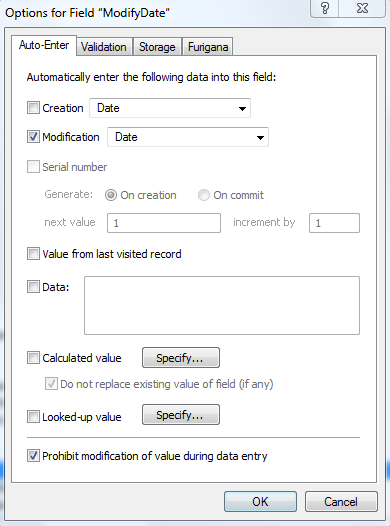
Define these fields within FileMaker, by using the field options dialog under the Auto-Enter tab. 
Here is the tab for the the modified date field…

And here is  the dialog checkbox for the user who last modified the record.

Note that there are two options to choose from:  “Name” and “Account Name”.
If you choose “Name” FileMaker will return the default user name that has been entered under the “Preferences” dialog for the individual copy of the FileMaker application on the particular workstation. This is less helpful as it wouldn’t accurate reflect the individual user using the database. (You could have several users entering data on that particular workstation).  
  
If you choose “Account Name”, then FileMaker will put in an account that you have set up in FileMaker’s “Manage Security” dialog and which requires the user to log in when opening the database. If the data file is hosted using FileMaker Server, you can also designate that the user is authenticated using their Active Directory user name, (when hosted on a Windows Server).

Since the data is stored permanently in the table, this creates a rudimentary audit trail showing who created each record and when, and the last time the record was modified and by whom. It isn’t a “real” audit trail because there is no ongoing history being recorded for each record. 

NY Times & Apple: Device Restrictions for Reading

I recently gave back my corporate iPad and was trying to access my NY Times digital subscription on my iPod touch…. but as I understand it,  the subscription covers either the iPad or or the iPod but not both (WTF?).

I also found out that I can’t access my bought and paid-for iBooks on my Mac.  (although I can still attempt to read them on the Touch).

I think this is a terrible design flaw.

I’m really going off digital reading, not that I was ever that enthusiastic. I can say with confidence I never completed a whole novel or non-fiction book that I started on the iPad.

Apple restrictions that don’t allow iBooks to be read on OSX devices (Mac computers!), and the New York Times policy of restricting content to particular devices is counterproductive.

At least Amazon with their Kindle apps allow books to be read across all my devices. Amazon titles tend to be either equivalent in cost,  or even cheaper than the iBook version.

The Parable of The Infrastructure

Once upon a time there was an Empire that decided it would embark on a huge public project to tie together all its far-flung lands. The connections that were intended to knit the empire together, to foster economic opportunities, and to allow its citizens to travel, communicate and exchange goods and services.

Smaller areas adjacent to the main arteries of the project were asked to join, These areas  were also afforded the option to be bypassed. Many chose this latter option, in the name of preserving their local integrity, of maintaining their local mores, or out of distrust of the Empire.

A generation passed.  One area, known as “Bolton”, was located within a scenic mountain range. The town of Bolton welcomed a local scheme to develop a ski area within its borders. Half of their mountain range was cut with ski trails. In the end, they had a lovely recreational opportunity. The citizens of Bolton anticipated a huge influx of tourists to their ski area and looked forward to growing rich. But the tourists never came. They were seen whizzing by in their SUVs along the new infrastructure which Bolton had declined a generation earlier, on their way to other ski areas. “If only we had made sure that we got that Bolton exit off the Interstate”, they lamented.

The ski area went bankrupt and closed. Another person bought it and ran it for a few years before going bankrupt again. A third company bought the ski area and ran it for several years before it went bankrupt again; and in the process millions of dollars were lost.

Another generation has passed. And Bolton doesn’t have an exit off the Interstate, and the Bolton Valley ski area has another owner. They are still waiting for the skiers.

Moral
=====
Some infrastructure opportunities come once in a a couple of generations and if you miss the window of opportunity you may never catch up.

Rural Electrification, Interstate highways, Broadband Fiber.  

10 Rules for Non-profit Network Management

Like the blog blurb says… “Nonprofits need reliable IT systems and services just like for-profit organizations”.  Many, if not most of the principals are the same but here are additional ideas for non-profits: 

1. Use Tech Soup.  You can get top-notch Cisco hardware from Tech Soup at pennies on the dollar, as well as Microsoft server and Office products at rock-bottom prices.  (I dream of a Mac office…but have never actually seen one, except my own home office. I would love to see a cost/benefit study of Macs vs. Windows in a production situation… I want to believe that he roughly 2x hardware and software costs of a Mac would be more than offset by the lower hassles of a Mac environment. ).   

2. Even though you “know” you should be using open source software, 95% of the time you can install Microsoft for a slightly higher cost than $0.00,  but have systems that are compatible with what everyone else is using and supporting.  (I’ve installed probably 60 versions of Linux over the years, but put exactly three into actual production.)  The one exception might be a web server, but you’ve outsourced that anyway.   

3. Outsource your eMail to your internet service provider. Running Exchange on an internal server will consume 5% of your user support time, and make people mad at you, because it just won’t be as reliable as cloud-based mail. Use a cloud-based calendar if you need one, or rely on the one in Basecamp for individual projects.  

4. Consider eliminated servers altogether and store your user data in the cloud. 

5. Unless your primary business is delivering computer training,  eliminate all “computer labs”.  At the most, you can have people bring laptops to conference room, if you want to meet face-to-face 
Otherwise, use Web-based training, and phone / Skype conferencing.  I like GoToTraining with is also available from Tech Soup at about $25.00 per month. 

6. Reduce the number of vendors that you deal with for hardware. That reduces the number relationships, transactions, invoices, and maintenance.  

7. Standardize, to the extent possible,  on a single model of each thing.  (Exhibit A of bad behavior…. ink-jet and cheap laser printers). I’m sitting in an office of 25 right now, that has seven different kinds of HP printers,  all with different cartridges. This,  plus a massive OCE copier.  

8. Use LogMeIn for user support. Any IT support person or vendor who is not using remote support is costing your organization barrels of wasted time, travel and money. 95% of all user problems can be dealt with by using LogMeIn. 

9. Buy phone headsets for anyone doing phone support. You want people to be comfortable when helping people on the phone, and able to use their mouse and keyboard. 

10. Have a rational password policy.  You can enforce complex passwords, but for heaven’s sake, don’t force people to change them every month. And let them reuse complex passwords after a year or two. If you force them to change each month, then inevitably you will find passwords taped to the laptop, or on the bulletin board. And you can look forward to a period a few days each month when user support calls are skyrocketing, and business slows to a crawl, because managers and staff can’t get into their machines and eMail accounts. 


Mac OSX: Missing "Save As" Considered Harmful

OSX Lion, and iWorks, the latest version of the Mac operating system and office productivity suite introduced a bone-headed new idea of “automatic saving”, and eliminates the option of “Save As” in several applications, notable the Mac word processor, Pages.  

Forgive me if I seem unadaptable in my old age, but consider the steps required to create  a new version of a familiar document. 

The old way:
1. Open the document you want to duplicate
2. Select File->Save As
3. Save the file under a new name,
4. Revise  and save.  

Among other things, the clear four-step process ensures that you don’t write over an existing version of a document.  I do this all the time.

Now, consider the new way. 
1. Open the document you want to duplicate
2. Select File->Duplicate
This opens a new version of the document with the same file name with the word “copy” appended to the original file name. 
3. Switch back to the original document and close it.
4. Switch to the copy.
5. Select file->Save… (since the copy has yet to be saved, the menu option has changed from “Save a Version” to “Save”. 
6. Rename the duplicate file to something useful, i.e. remove “copy” that the program appends to the file name, and make changes.
7. Select “Save” at the bottom of the dialog
8. Begin making revisions.  The program automatically saves periodically.   

THIS IS INSANE.   Who made this up?  And are they still working at Apple?

Update: August 2012: The successor to Lion… (Mountain Lion), has partially restored Save As…. if you hold down the Option key, when displaying the File Menu….. its back! Or if you are a keyboard shortcut person,  the keyboard combination of Shift+Option+Command+S will Save As.  (That takes two hands, for me).

Still, since the earlier change still seems incredibly stupid,   I can’t quite understand why they don’t reverse it and make Save As the default, and then evaluate whether anyone uses the Duplicate command…which takes so many additional steps.

New FileMaker v. 12 with free iOS runtimes

FileMaker has announced their version 12 upgrade to the popular cross-platform desktop database.  The biggest news is that that the iPad and iPhone runtime versions, which used to cost $40.00 and $20.00 respectively, per device are now free on the Apple App Store. This is terrific, and will hopefully popularize FileMaker further on those platforms. 

The .fp7 file format has been retired in favor of a new format.  Fp7 files are moved into the new format in a one-way scenario….once changed they can no longer be opened in older versions.

I worked with the pre-release version of FM 12 and found most changes to be relatively minor. I had no problem converting older apps to the newer format. Everything worked in all formats and platforms; Windows, Mac OSX, iPad and iPhone, and Web forms. 

Matt Petrowsky did  a very nice video description that provides an overview of the new changes and additions to FileMaker 12.