Category Archives: Uncategorized

VirtualBox: Working from the command line.

Besides a superb graphical user interface, VirtualBox has a command-line interface which can be run from a command line or terminal session. You have to navigate to the installation directory for VirtualBox. On Windows 7 it is located in
C:\Program Files\Oracle\VirtualBox

Once in the directory, you control the virtual machines by using the vboxmanage command followed by a subcommand, followed by the name of the VM that you want to work with.  
Examples: 

List the currently configured VMs.  
 vboxmanage list vms

“UbServer1” {86742a7d-1188-4b48-b09a-4a0139d14930}
“UbServer2” {30bbee61-7115-4494-91fb-987a1dad74a4}
“UbDesktop” {a83379da-31e4-4064-b4c7-de4dec73195d}
“RHServer71” {bf9515d0-aead-4423-990b-3a6493712dc0}
“RHDesktop” {461c94b9-6743-4d7b-a444-6972586a562b}

This shows that I have 5 configured VMs…. two Ubuntu servers, a Ubuntu desktop, and two RedHat virtual machines.

To find out information about a specific VM:

vboxmanage showvminfo ubServer1

Name:            UbServer1
Groups:          /
Guest OS:        Ubuntu
UUID:            86742a7d-1188-4b48-b09a-4a0139d14930
Config file:     C:\Users\Larry\VirtualBox VMs\UbServer1\UbServer1.vbox
Snapshot folder: C:\Users\Larry\VirtualBox VMs\UbServer1\Snapshots
Log folder:      C:\Users\Larry\VirtualBox VMs\UbServer1\Logs
Hardware UUID:   86742a7d-1188-4b48-b09a-4a0139d14930
Memory size:     2048MB
Page Fusion:     off
VRAM size:       12MB
CPU exec cap:    100%
HPET:            off
Chipset:         piix3
Firmware:        BIOS
Number of CPUs:  1
PAE:             on
Long Mode:       off
Synthetic CPU:   off
CPUID overrides: None
Boot menu mode:  message and menu
Boot Device (1): Floppy
Boot Device (2): DVD
Boot Device (3): HardDisk 


This is the beginning of the listing, which runs about five screens. It includes all of the information shown in the GUI Settings pane, as well as additional information. 

vboxmanage startvm RHDesktop

Waiting for VM “RHDesktop” to power on…
VM “RHDesktop” has been successfully started.

This starts a named virtual machine.
The counterpart for stopping is:

vboxmanage controlvm RHDesktop poweroff

 Full manual is here

VirtualBox: Getting Started

Having worked with virtualization software since prehistoric times… (yes, Quarterdeck DeskView and QEMM) it only has really worked for me with machines with expanded RAM. We have come a long way. The best recommendation I can give is that if you are hosting on Windows, that you would do well to have 4-8 gigs of RAM. You need to have enough RAM to comfortably run the host operating system as well as the guest operating system(s). This may be less of a problem for older guests, and maybe Linux, without a GUI (we’ll see …).

If you are expecting to be productive on the host machine when running a large guest OS, you need the RAM. For example, on my 4 gig iMac, I don’t do much in the way of Mac stuff, when I’m running Windows 7 via Parallels, and I’ve only allocated 1.5 gigs of memory to the Windows guest… so Windows doesn’t perform particularly well either.

On the other hand with my recent Windows 7 box with 8Gigs, I’ve been going to town hosting multiple Linux versions, as well as Windows 7 and 8 guests. In these cases I’m able to allocate 2-4 gigs to each guest.  

To get started with VirtualBox, you need to go to the website and download the version you want for your operating system. Examples here are from the Windows version. Mac and Linux versions behave similarly. Once installed and started you are shown the VB Manager.

Click to enlarge

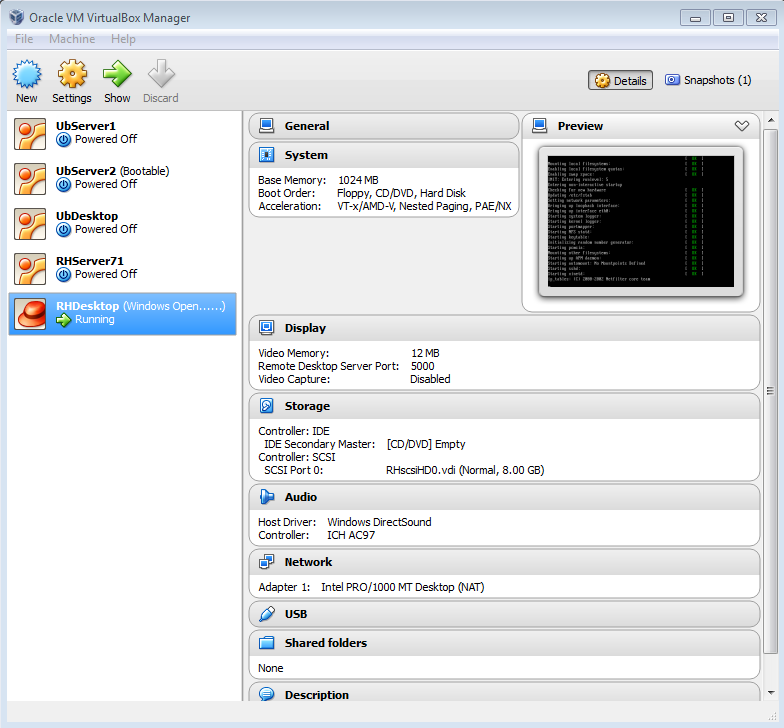
The manager shows each virtual machine set up on the host in the left-hand pane, and then anything specific to a guest in the right hand pane. This includes all of the hardware specifications for the virtual hardware, as well as a screen shot of what is happening on the screen of the virtual machine.

The manager currently shows an instance of Red Hat Version 9 (Shrike) booting up. The preview screen is an echo of a full interactive screen which is present in its own window.  Below is an example of a Windows 7 guest running within a Windows 7 host. 

Cick to enlarge: Installing a Windows 7 guest 

Guest operating systems can be installed from physical CD/DVDs, USB drives, or disk images (.iso files). Iso files are easiest, as you don’t have to worry about the VirtualBox host using external hardware. 

For example for the Windows 7 installation shown above, I assigned the Windows installation .iso file by clicking on the disk in the upper right-hand corner in the VirtualBox manager. 

Click to enlarge: Choose an disk image for installing an OS

VirtualBox: Create your own cloud with virtual machines

Virtual Machine (VM) software has been around for a long time. Mac users are familiar with Parallels. On the Windows side there have been several to choose from, including one from Microsoft itself which is delivered with some versions of Windows 7, to allow users to run Windows XP programs. VirtualBox is an open source, free program available from Oracle.  It is easy to set up and fun to play with.

But wait, why would I use this?  I can think of three reasons:

1. Run an essential program on one system that doesn’t work on another system. A classic use for VM software is to run a different operating system (the guest) on your main computer (the host). Many Mac users run Parallels to be able to run Windows for an essential program that isn’t on the Mac (think QuickBooks…for small businesses, or some CAD or 3d imaging programs.)  I run Windows 7 on my iMac and laptop Macbook Pro using Parallels, but they would work fine with VirtualBox).

2. Run an older version of something that you just can’t conveniently upgrade. My own motivation for investigating this is to be able to extend the service life of a creaky mySQL database that has connections to a web site. While we’re in the process of rewriting the web site, it will still be awhile before we can ditch the old database, and in the meantime, we’re having hardware issues. So we’re hoping to use VirtualBox to migrate the old server on to a VM running on new hardware.

3. Consolidate servers. Virtual Machines can be used to provide multiple servers on a single hardware server, saving space and energy.      

4. Research, rehearsal, training and testing. Using a VM is a great way to rehearse and train for a hardware upgrade, to try out a new operating system, or to play with (virtual) hardware. Just as NASA astronauts simulate a moon landing, you can easily simulate a five-drive RAID array, and figure out how to set one up without all those pesky wires.

Next: Set up VirtualBox on Windows 7.

Odds and Sods

Don Lancaster has posted many of his books as free PDF files. My favorite has always been the Incredible Secret Money Machine.

Life seems to go in three year cycles. So every now and then it pays to take an inventory and see if what you are doing and who you are doing it with is what you really want. Are you now handling something for some organization that is being completely thwarted by some petty politics or childish ego games? Is the course you are teaching still relevant? Are you doing what you want with who you want? Are your biases and prejudices hurting you? Do you have., all the facts? What is working and what isn’t? What is fun and what is not? Are the hours you are spending on any project paying for themselves or otherwise rewarding you? Are you ignoring obvious new directions? Is a guilt trip getting laid on you? Have one time friends become psychic energy sinks? Are church or family demanding too much of your energy? 

The above paragraph is from the introduction to the 1992 second edition. The first edition came out in 1978. (I note these are going for $150.00 on Amazon).

LogMeIn has dropped their LogMeIn Free service.  For those with current Central or paid Pro accounts, nothing seems to have changed as of yet.

A recently published paper attempts to quantify the attributes of successful KickStarter campaigns. The Language that Gets People To Give.

Chris Oatley, a graphics and character designer has a series of blog posts entitled, Will Your Personal Project Make Money?

The Missing FileMaker ExecuteSQL Reference by Beverly Roth. If you think you need it, you need it. The link is from the excellent FileMaker Hacks web site.

MightyData: Another web site, full of Filemaker hacks.

Working on a migration project to move an older mySQL database to new hardware, and in the process, I’m simulating it as much as possible using VirtualBox. So far the challenges have been learning enough about how VirtualBox works, coupled with mySQL grants and rights, and a fair amount Ubuntu Linux, including software RAID.

SmartyStreets: Interactive Address Verification

Among the many gifts that the Internet bestows on non-profits, SmartyStreets surely has to be one of them.

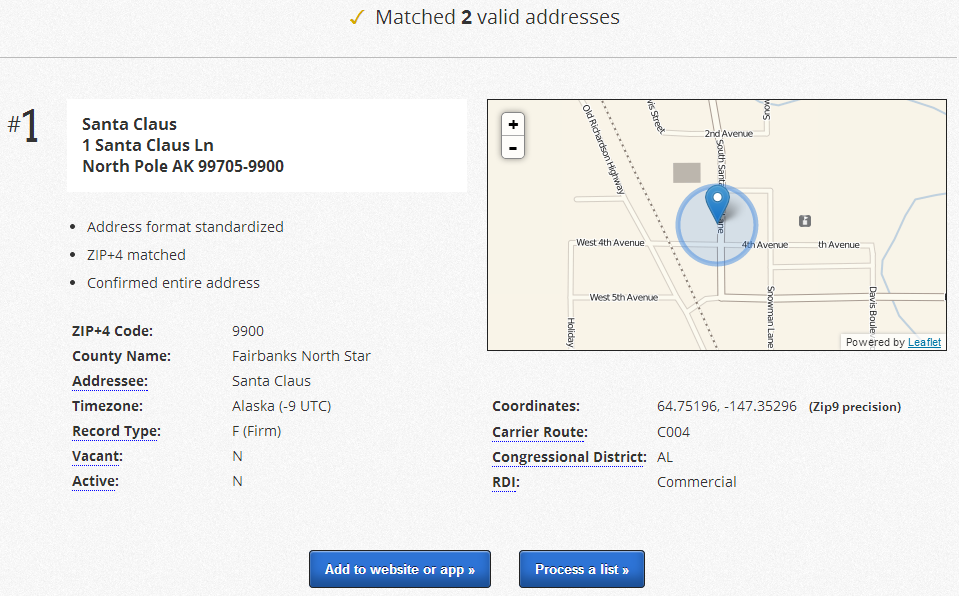
Put in an address…..say,  1 Santa Claus Lane, North Pole AK…


and you will get back a listing of the correct postal address, including the zip+4 address,  a map of the location, the time zone of the location, and a slew of information about the address. If it is a commercial address, you may get the company name included.

If you are doing data entry, and want to confirm an address on the fly, you can do this interactively by just bringing up the web page.  SmartyStreets will return the address, corrected and formatted for a postal label. SmartyStreets will also perform minor corrections on an address.  For example, if you put in 10 Oak Street, and the address is really 10 Oak Drive, SmartyStreets, will suggest Oak Drive as a valid street name.
Great stuff!  

Updates

Having been MIA for much of the fall of 2013, working on mailing lists for a local non-profit. I’ve learned a couple things: 

FileMaker Pro version 13 has been released. The price has increased, and the paradigm for multi-user deployment has changed in favor of their browser-based workstation client as opposed to the stand-alone client. I’m not sure that it is as economically viable for small deployments as it was in the past, but the Windows version of FileMaker Pro Advanced is still a terrific program for manipulating databases of any kind. About US $325.00 to upgrade or $500 to buy new. For anyone bogged down with a bunch of Excel spreadsheets, FileMaker is really worth a look; you can download a 30-day trial.  Works with Macs, Windows, iPhones, and iPads. and provides a very nice front end to … 
mySQL  An open-source alternative to SQL-Server.  There is a phpAdmin administrator program which is popular, and may be fine for administration, as opposed to querying, but for a really nice lightweight front-end SQL query generator HeidiSql is freeware, and it works really well (Windows only). Heidi has syntax checking and coloring, maintains a query history, runs batch queries, and does just about anything a normal user needs. 
Lenovo ThinkCenter desktops. A solid Windows 7 workstation, especially when the RAM is increased to 8 gigabytes. Utterly unglamorous, utterly reliable. A great alternative to Dell.  About $600.00 from NewEgg.  
SmartyStreets This web site provides address verification for mailing lists. It allows you to verify a single address at a time as you are entering or editing your lists, or it allows you to submit a full list of almost any number of addresses for verification and correction. It will provide the “plus-4” for zip codes, and will also provide the bar-code numbers if you want to put bar codes on your address labels. There is a lot here, and I’m just getting started with it. Free for non-profits for up to something like 150,000 names. Note it only deals with U.S. addresses. 
GroveStreams is a cloud-based charting a dashboard-display program. I’ve described this more over on TechforHomeHealthCare.com as I interface my Arduino heart-rate monitor to display data on GroveStreams. 


The Champlain Mini Maker Faire will take place on Saturday and Sunday, September 28, and 29, at the Shelburne Farms Coach Barn in Shelburne Vermont. I’ll be showing my Arduino projects. Look for a feast of 3d printers, robots, innovators, science projects, crafts, and you-name-it. See all about it on the web site, and follow the twitter feed of @champlainmaker.

Microsoft Visio 2013: An old friend, with a new skin

Not dead yet!  Microsoft Visio, the business diagramming and visualization software, is back in a 2013 version. Frankly, it works like the 2010 version, which is great, because once you manage to get it going in Windows 8, the keystrokes, menus, and ribbons are much the same. There are some new themes, including the one in the picture that imitates a hand-drawn diagram. (Hmm….maybe this isn’t progress after all…).  

I recently led a day-long Visio 2010 workshop, with attendees from a local engineering firm, the Department of Homeland Security, and some folks from our state administration. Just for fun, I did a scan on my workstation and server drives for .VSD files, to print out for the class, and I had to stop after about 50.  Some of the files went back before Visio was acquired by Microsoft. They included:

  • Business workflows for the grant application process
  • Entity-relationship diagrams for database designs
  • Lots of forms
  • Network diagrams
  • Office floor plans, with wiring specifications
  • Data graphs 

After playing for a couple hours with the 2013 version, I’m happy to see that it hasn’t been ruined by the upgrade. In fact, the main changes I see is the embedded ability to save to the cloud (via Microsoft’s Sky Drive) and a few (somewhat lurid) additional color themes.

Visio 2013 Network Diagram

The Mac never seemed to get an equivalent program, which I’d attribute to Apple’s ambiguous relationship with business users. Too bad, because the Mac is the ideal graphics machine, and supposed to be for “creative” people. I guess we schlubs will have to slink back to Windows and Visio. Just don’t tell anyone that I run it on my Mac in a Parallels virtual machine.   
Visio 2010 is dead?  Long Live version 2013!   
Visio 20123 Mind Map (Click to enlarge.)

Distractions: MacBook Pro, Spotify, and Aretha Franklin

While setting up a new MacBook, I downloaded and reinstalled OmmWriter, only to find that they had replaced the music from the earlier version 1.0. They now appear to be at version 1.3. and the music is much more, “video game-ish”, in my opinion.

It may be better to bag the music included with Ommwriter, and go with something a little more new-ageish. Some recent favorites have been music by Michael Hewett or Tina Malia, Guitar Adagios by Steve Erquiaga, and almost anything by Luciana Souza or Diana Krall.

The problem with some of the latter is that if you hear them cover a compelling song, then with Spotify its too easy to go find treatments of the same song by other vocalists. Example; “How Long Has This Been Going On?” by John Pizarelli..with a solo piano accompaniment started me off on a long search and comparison of artists, then to more George Gershwin, then to Sheetmusic Plus to get the piano arrangement.

And now I’m lost listening to Aretha Franklin’s cover of It Ain’t Necessarily So.

Create a new folder from FileMaker with AppleScript

I have a button on a FileMaker form that I want to use to create a new folder within the documents/jobhunt folder. This is one of those things that you’d think would be easy to accomplish, but there is no command within FileMaker scripting to do it. One solution is to use the FileMaker script step [Perform Applescript], and execute the following Applescript.  Note that the dialog which allows you type in a folder name is an AppleScript dialog not a FileMaker dialog. 

What is happening within the script, is the following: 
1. Displays a dialog to choose a folder name


2. Copy the folder name to a variable text_returned
3. Assign the path of the user’s Documents folder to the variable p.  
/Users/lkeyes/Documents
4. Append the existing JobHunt folder to the path 
/Users/lkeyes/Documents/Job Hunt
5. Create a new folder within the “Job Hunt” folder with the name myfolder.  

Here is the code from the FileMaker Script:  

Perform AppleScript [ Native AppleScript: display dialog “Enter a folder name for your job:” default answer “” buttons {“OK”, “Cancel”} default button 1
copy the result as list to {text_returned, button_pressed}
set p to path to documents folder as string set p to p & “Job Hunt:”
tell application “Finder”
make new folder at p with properties {name:text_returned}

end tell ] 


Here is the code from the Applescript Editor: 

display dialog “Enter a folder name for your job:” default answer “” buttons {“OK”, “Cancel”} default button 1
copy the result as list to {text_returned, button_pressed}
set p to path to documents folder as string
set p to p & “Job Hunt:”
tell application “Finder”
make new folder at p with properties {name:text_returned}
end tell
Now, I have naturally received advice to use a FileMaker plug-in, which makes this a lot easier.