SalesForce NonProfit Starter Pack

We’ve been looking into a Customer Relationship Management system for our nonprofit, that will encompass more than the just the usual fundraising type of database. One option that we’re taking a hard look at is the cloud-based SalesForce nonprofit version. One of the tasks is to learn the workflow jargon such as:

  • Opportunity Stages
  • Opportunity Sales Processes
  • Opportunity Record Types

Salesforce provides a donation for up to 10 users for any qualifying non-profit organization. The Nonprofit Starter Pack is a pre-configured set of functions and data elements that can be overlaid on to a “standard” SalesForce company installation. The donation includes significant online support, documentation,  and forums with members from nonprofits who are using the system.

As a preliminary exercise, I’m going to attempt to import our donor data from our previous Little Green Light system. This consists of two tables; a donor contact table and a transaction table which lists all of the donations made by members in the donor table. Both of these are currently living in FileMaker which can export into a variety of file formats including Excel and comma delimited (text) files.

WordPress: Fix the File Upload Size Limit

On our WordPress site we want to allow the site manager the ability to upload PDF files which can then be downloaded by our blog viewers. While working out this process we ran into a problem with the file size; any file larger than 2 megabytes was not allowed to be uploaded to the site.

Rather than having this setting located somewhere within WordPress, it turns out that the setting is set by the PHP installation.  (PHP is the language that WordPress is written in, and WordPress the application is written as a series of PHP files).

As I was working through this issue, the first embarrassment was that I couldn’t even find the WordPress installation on my Linux server. Usually WordPress is supposed to be installed somewhere relatively transparent, like the /var/html/wordpress folder. Instead mine was buried under  /srv/www/li999-999.members.linode.com/public_html; somehow related to my virtual host from Linode

As my plumber says, when looking at the latest plumbing problem in our basement, “I wonder why they did that?”  Whatever. The way I finally found this out was to search for the one file that is in every WordPress site; wp-config.php.  I did this by firing up the FileZilla FTP program, and doing a search for remote files.
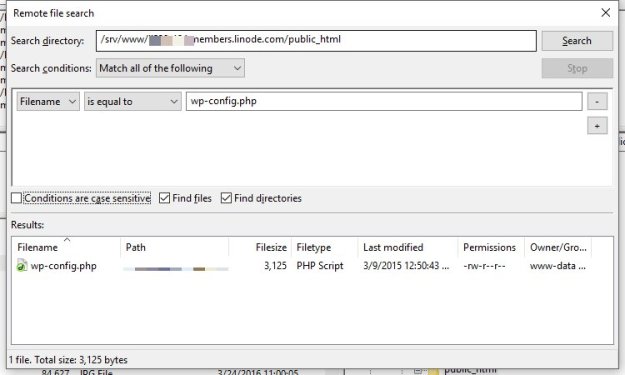
SearchRemoe

Having found the root directory of my WP installation,  I now needed to find the location of the PHP configuration file. I used a similar search in FileZilla and came up with two php.ini files.  Which was the “real” one?

Actually, I didn’t need to do that. Instead, I needed to get to have a script that calls the phpinfo() function which displays a nice list of all the php configuration parameters. Placed in the root directory of my web server, and then called from a web browser, this script displays all of the inner workings of the php configuration of my site.  Here’s the script:

<?php
// Show all information, defaults to INFO_ALL
phpinfo();

?>

This script is saved as GetPHPInfo.php and copied back to the root directory of the web server.

http://mywebsite/GetPHPInfo.php

Call this script in the web browser and it produces  the following:
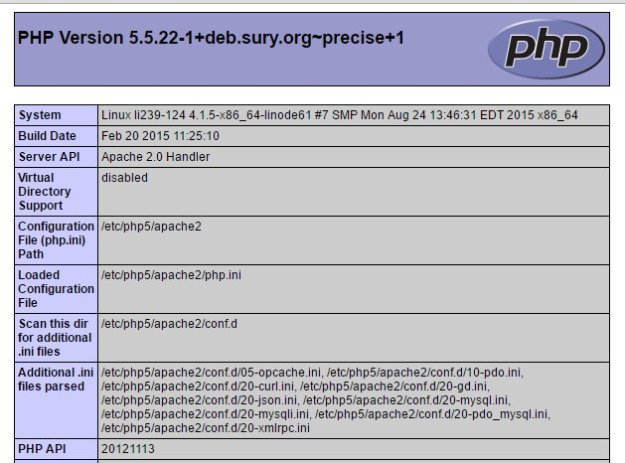
PHP1

The above is just the tip of the iceberg. Scrolling waaaay down, I find the following parameter in the “core” section of the page:

php2

That is the size restriction, and it is this parameter that I need to change.  I’m thinking that 12 megs should be plenty.  Looking back up top in the 6th line, I see the “Loaded Configuration File” is located at:  /etc/php5/apache2/php.ini  This is the file I’m going to change. So, its back to FileZilla to find it, download it and edit it in Notepad++

PHPini

I downloaded the wp-config.php file to my local machine using FileZilla.  Then I edited the file using Notepad++. to change the  2M to 12M.  Then I uploaded the file via FileZilla back to the web server.

At this point I needed to reboot the web server, Apache2. Depending on the your installation, there are a couple ways to do this at the command line:

$ sudo /etc/init.d/apache2 restart

Or,  in the case of the lazy systems administrator, I just rebooted the whole server. This takes less than two minutes.

The result is now we can upload files that are a maximum of 12 megabytes in size.

I get to do this on another WordPress server too.  Oh joy!

Slack for Grant Applications

We have just put Slack through its paces as a collaboration platform for applying for a couple of grants. We had a distributed team of three core team members:

  • The brain (BR) (who wrote most of the narrative parts of the application)
  • The numbers guy (NG) (who vetted the budget documents and provided updated balance sheet and income statements)
  • The grant slave. (GS)  (who managed the online submission process)

Like all grant applications these days, the application is online. The grantor uses Foundant as their online platform, which provides  a pretty good interface for the applicant.

The Toolbox

PDF Wranglers

Text-based attachments are usually PDF files, so you need some way to create these and combine them. Native Macintosh apps like Numbers can create PDFs. It also turns out that you can combine PDFs using the Mac Preview program. You can’t do this with the free Adobe Reader which I found out to my chagrin, loosing an hour or so in the process of trying.

DropBox

Since we were working from home and from the office,  with both Windows and Macs, we needed a common place to store source files that we were adding to the online application.

Text Editor

OmmWriter on Windows and is now available for the Mac and iPad.  (I used the Mac text utility.) OmmWriter can export directly to PDF if needed, but usually I’d copy and paste directly into the online application. OmmWrite provides a critical function…it counts both words and characters so that you can stay within those restrictions if they exist. In our applications they did…and I spent considerable time editing the Other People’s stuff. Death to adverbs!

Spreadsheet Program

Numbers on the Mac,  Excel on Mac or Windows. Both create PDFs.

How we set up Slack

Each contributor is set up as a member of our Slack Team, so it is possible to send direct messages between each other.

We have a single Slack channel called #fundraising where we place all of the items that we have under discussion. If I had to do this again, with simultaneous applications, I might consider creating one channel for each grant application, however we shared a lot of data between the two applications as they were from the same funder.

The core team members are members of #fundraising. The rest of our non-profit board are also members but weren’t active during the creation process.  Obviously,  anything published in #fundraising is “public” or open for inspection to the team and the members.

The Work Flow

Grant Slave (GS) establishes account with the funder’s system, and downloads a PDF of the blank application.

GS posts the blank application to Slack in #fundraising.

Discussion within #fundraising, about who takes what for the writing.

As BR and NG prepare their text files,  GS starts filling in the online application with the routine stuff; name and address of the our organization, our mission,  etc. .

As the application becomes filled in, it gets printed to PDF and the PDF is posted in the #fundraising channel.

Team members view the PDF from within Slack and make suggestions for changes. They also post their new text in the channel. This is easiest if it is posted as a simple Slack message, as opposed to a Slack snippet or Slack post.

GS enters updated text in the online application,  usually by copying and pasting text that the others have provided in #fundraising.

Iterate.  As each new version of the application PDF  is generated, it gets posted to #fundraising and the earlier versions are deleted.  The idea here is that people are always looking at the most recent version of the application PDF.

Discussion

Note a couple things:

  • Only one person touches the online application.
  • Everyone works with and edits the most recent version of the application. This is effectively a version-control system.
  • This system allows creative people (BR and NG) to be creative, without having to worry too much about the mechanics.


SEO, Oh No!

stupid-487043_640

I’m always amazed at stupid I was yesterday*. We’re creating our brand spanking new web site for our non-profit, and my attitude to SEO (or Search Engine Optimization) was….”we’ll since we haven’t put up the web site we don’t have any statistics, and since we don’t have any statistics, there is no point in doing SEO until the site is up.”

WRONG.

In fact, I should have done this with my own blog site as well,  recently switched from Blogger to WordPress. So that is two strikes.

It began innocently enough… literally with a water-cooler conversation with an SEO expert, who made the following points:

  1. Run Google Analytics on your old site. Identify the top pages that are always accessed. These are the pages that you want to transfer to your new site; as intact as possible, even to using the same folder structure as the old site.
  2. Can’t run Google Analytics on the old site?  Its probably because GA was set up with a personal Google account from someone long gone from your organization. So, next time…do the organization a favor and use a generic account,  like webmaster@myorgname.org so that someone else can access Analytics if you get hit by a bus. And there should be a next time….like right now.
  3. Even if you are unable to see statistics from Google, you can run an Alexa search which searches links in and out of your site. Lots better than nothing. Or if the old site is a Blogger or WordPress site, you can get statistics from those hosts.
  4. Assuming that you can identify popular pages, you want to flag the pages on the old site with a redirect from the old page to the new page. If correctly redirected, the page rank and statistics from the old site will be transferred to the new site. Do this for enough pages and you’ll preserve the old site page rank going forward.

Notes: * from Alan Weiss,  ” I’ve been fond of stating the following truth for years: I’m constantly surprised at how stupid I was two weeks ago.”

Apple Downsizes. New iPad Pro and iPhone

Screenshot_032116_020923_PM

Apple is holding its March announcement, and it is an odd mixture of a sort of fashion runway theme, snake oil salesmanship, and religious revival. It was a bit disconcerting to see CEO Tim Cook slavering over the new colors for the watch bands for the iWatch. The whole presentation seemed to have a sense of desperation.

Incredible!, Awesome!, Epic!, Incredibly!, Biggest!, Unbelievably Thin! I keep thinking there should be a way to lend a greater aura of dignity to the whole proceeding, but always end up feeling a little queasy.

They are even claiming that  your iPhone will help you sleep better.

Two interesting segments of the presentation revolved around a new iPad and health-related software.

  1. The Health App is a dashboard for health data which consolidates health data from other sites and devices. There was discussion of ResearchKit, which uses the iPhone as a data collection device for research data, and a new framework called CareKit, which delivers.
  2. iPad. A new iPad Pro with a 9.7 inch display. They are saying they are targeting Windows users. There are over 600 million PCs in use today that are over 5 years old.  The iPad solves problems that you never knew you had. There is an available smart keyboard, and the Apple Pencil. The cameras have been upgraded to a 12 megapixels, and the ability to shoot 4K video. The front camera is 5 megapixels. Starting at $599 at 32GB, If you add an Apple Pencil, and a smart keyboard, the cost will approach a thousand bucks.

Outside of these two announcements there was the aforementioned discussion of new fabrics, styles and colors for the Apple Watchband, an upgrade to Apple TV, and upgrades to a few of the apps on IOS 9, including the lame Notes and News apps, and a new smaller iPhone. All this is accompanied by polite applause and accompanying whoops.

Grantwriting on Commission. Ethical?

I was recently Debbie Downer during a discussion of grantwriting on commission.  My position was that it is considered unethical by foundations, grantwriters, funders etc. for several reasons:

  1. A funder is not going to be happy if they find that 5% or 10% of an award is going to go to the grantwriter, and not toward program-related expenses.
  2. A flat percentage of a larger award would be considered “excessive” by any reasonable measure. For example, if the grantwriter receives 5% of  a $1.5 million award, that’s $75,000 that isn’t going to go back to the support the program that the grant is funding.
  3. The work to write the application take’s place whether the award is made or not.
  4. Commissions place the burden of risk entirely on the grantwriter.  Other professionals do not work “on spec”…such as the organization’s accountant or lawyer.
  5. Actual grantwriting is a small percentage of time required to create  the whole package that encompasses a successful project. If the organization doesn’t have the money to pay their grantwriter, they won’t be able to convince a funder that they have their act together to pull off a successful project.

For further background, The NonProfit Times did a very nice article articulating these arguments.


LimeSurvey: Reset User Names and Passwords

We use LimeSurvey for receiving grant applications. These applications sometimes take a while to fill out, and the applicants have the opportunity to save an existing application with a name and password for re-use later.

Once they save, the LimeSurvey server will send them an eMail with their name and password, and a link to get back into the existing application to continue working.

Inevitably, people forget their name and password, or misplace the email.

Incredibly, even after all these years, LimeSurvey doesn’t have a one-click solution for fixing the problem at the administrator level  or  a “forgot your password?” link on the login screen.

So, this becomes a tech support issue, and significant time sink.  The only solution that I know of is for the administrator to go into the database  back-end which stores all of the LimeSurvey tables, and reset the user’s password to a known password.  Here is how I do this.

  1. Once contacted by a user in distress, I search the listings to find their application, and view the contents.  If there isn’t any significant work done there, (i.e. they have just started the application), I’ll delete it and have them create a new one.  Otherwise,  I will note the eMail password and the user name.
  2. I then SSH into the mySQL back-end (or whatever database you are using).
  3.  mysql -pmypassword
  4. use limesurvey;
  5. select scid, identifier, access_code, email from lime_saved_control;
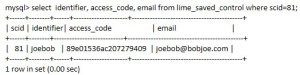
    This select statement displays the list of all the LimeSurvey users. Scanning this list, you’ll find your user’s email address or name.  You can then isolate that particular record by repeating the query with a where clause.
  6. select scid, identifier, access_code, email from lime_saved_control where scid=’81’
    The result record will look something like the following:
    Screenshot_030916_124232_PM
  7. Note in the diagram above the field names:
    identifier = the name under which the user saved their application
    access_code = a hash value of the password that they used.
    These two items are what the user needs to be able to go into their existing grant application.
  8. You could run the hash through a reverse hash calculator to recover their existing password. However, I prefer simply to  put in a new password:
    update lime_saved_control set access_code = MD5(‘12345′) where scid=’81’;
  9. At this point I can send the user an eMail  message showing what name the application was saved under and the new password of 12345.

Naturally this solution is fraught with danger…. so I’d recommend that you rehearse this procedure on your installation.

10 Ideas for New WordPress Users

Our team implementing a WordPress site, and as experienced web-site developers, but as newish WordPress users, we’re starting to develop a list of best practices that we either should have done earlier or are actually doing.

  1. Know the difference between WordPress.com, the online free WordPress hosting service, WordPress.org, the site hosted by the producers of WordPress, and your own independently hosted WordPress site.
  2. Much of the flexibility in modifying themes and the availability of themes require an independent WordPress site. Third-party plugins are not available on a WordPress.com site.
  3. With a WordPress.com site, your site will be named as a subdomain of WordPress.com.For an additional charge, you can have your own domain name point to your WordPress.com site. As an example, I created a site called powershellnotebook.wordpress.com.  I then purchased the domain name powershellnotebook.com and pointed it to the WordPress.com blog.
  4. Once you have chosen a theme, be sure to create a child theme based on that theme, and then make all modifications in the child theme. The reason for this is that when the main theme is updated by the developer and then updated on your site, the main theme is overwritten and reinstalled. Your child theme will inherit the updates, but your own modifications and changes will remain untouched.
  5. Know the difference between themes, layouts,  widgets and plugins.
  6. Within a post,  some layouts have “formats”.  These are page styles, unique to each post,  i.e.  a post can have only one format. Formats include “aside”, “quote”, “status”  and a few others. Formats are a WordPress thing, a theme can choose to support formats or not.
  7. Use categories to group posts for navigation and searching. Best practice is to assign one category for a post. If your site has three different main types of information, then you might make three categories, and assign one of these to each post. For example, for a bike touring site, you might have categories like “routes”, “gear”, “stories”.
  8. You can also have sub-categories, especially if you have a more complex site.  For our bike site, we might split up “routes” by region; “north-east”, “north-west”, “south”, “central” and under the category of gear, we might include “bikes”, “luggage” and “camping”.  If you assign a sub-category to a post, then it will automatically appear under the main category when the user searches by category. Best practice is to assign only the subcategory the post.
  9. Tags are another way to classify a post, and a post can (and maybe should) have multiple tags assigned to it. Since a tag is similar to a category, (they are both just a snippet of text which describes the content of a post), a tag shouldn’t duplicate the category, You can also use popular tags which will enhance the ability of your post to be found in Google searches.
  10. There is a lot of support for WordPress in the community. WPBeginner and Smashing Magazine are two places to start.


Move to the Cloud: About Google Drive.

Everyone wants to store your data. Dropbox, Box, Adobe Creative Cloud, Apple iCloud drive, Microsoft OneDrive, you name it, they want to store it.  Fine. One thing I won’t do here is compare and contrast different applications. I just want to encourage our staff to use a single one.

Since we’ve been using Google Apps for Work in our non-profit organization, (available for free)… it follows that we’re encouraging people to use Google Drive, because of the integration with the all the other Google Stuff, (especially GMail).  A few more reasons:

  1. We use GMail, so once a user is logged into GMail, they are automatically logged into the company’s Google Drive when they connect to their folder, or access  it from within a web browser; no separate log-in is required.
  2. Since any files stored in a user’s Google Drive folder are coupled to their company eMail account, we can ultimately control and access the files.
  3. The user can access the file on any device or from any location.
  4. The user can easily share files with other users, which facilitates collaboration irrespective of time, location or device.
  5. We can create a shared folder hierarchy that mimics our network file server folder structure.  If users have a mapped drive letter on the old system,  you can create a similar mapping for the Google Drive.  For example, our “traditional” setup allocates Drive F: to the users home folder, and Drive U: to our “main” folder which contains all of the subfolders used throughout by the team.

Since we’re not a high-security outfit in terms of the data we’re working with, we acknowledge the preference for convenience and accessibility over the kind of rigorous control and security available when managing user files on a traditional network server.

Install Google Drive on Windows

You can easily drag and drop files to your Google Drive by accessing the drive from within a web browser.  However, there is also a small program that installs a Google Drive folder directly on your workstation.

Download the Google Drive application, and run it to begin the installation.

Screenshot_022516_104026_AM

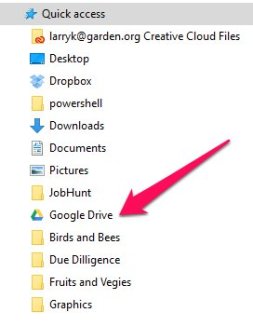
Once the application is run, Google Drive appears as a folder in your normal Windows Explorer folder hierarchy.

Screenshot_022516_104211_AM

Google has a help center for Google Drive that describes most of the issues related to Google Drive.


Archive and Transfer your Google Mail

When an employee leaves your company you may need to archive.

Using the Chrome browser:

1. Sign into your google account.

2. In a new tab, browse to the following address: https://takeout.google.com/settings/takeout/custom/gmail,calendar

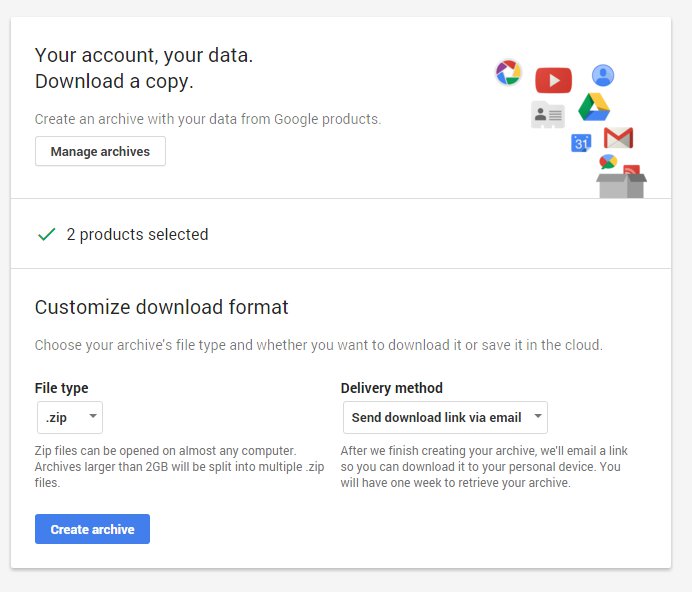
3. Follow the wizard.  You can choose to make an archive just of your eMail and calendar, or you can select information from other services such as Google Drive.

4. Once you have selected the services that you want,  click on Next


This shows the file version (zipped),

5. Click on Next again   This starts the archive process.  You can access the archive after it created by clicking on the link that Google sends to your eMail account.