Category Archives: Tech_Friday

freeNAS File Server for Student Data – Adding Students

Last time I talked about freeNAS, the free Network Attached Storage application that allows you to easily create a file server.  There are several sites online which have documentation on how to get a freeNAS server up and running. What I hadn’t found was much information about how to create a secure multi-user environment to allow students to save their data.  Here are the specs:

1. Students will access the server from a Windows XP or Windows 7 workstation
2. Students will use a mapped drive to access the freeNAS server
3. Students will have their own dedicated folder.
4. Students will be restricted to their own folder, and any subfolders that they create.
5. Students are issued a user name and password for the freeNAS password

Initial steps to prepare the server: using the freeNAS web page
1. Create a mount point on the server.  I called mine “StudentData”
2. From the Services Menu, Select CIFS
3. Create a folder share using the StudentData as the name, and the StudentData mount point.
4. From the Access menu create an access group called “Students”.

Using the freeNAS console –
3. Select 6 from menu to get to a shell prompt
4. Change to the “root” of the mounted volume.
cd /mnt/StudentData
5. Allow everyone to traverse the directory, but not to change or execute, only the root (supervisor) can delete or add.
chmod 711 /mnt/StudentData
chown root /mnt/StudentData

Organize the student user names and passwords
1. Get the full name of each student.
2. Assign passwords to each student.
3. Assign the login name for each student.  I use the first initial and last name
4. Add the student within the Gui under Access : Users and Groups
5. Add the student’s login name, and password
6. Assign the student’s home folder as /mnt/StudentData/ Note that the folder does not have to physically exist yet, although if you want to be able to choose the correct folder from the drop down box, it needs to be created on the disk beforehand. 
7. Save changes
8. Be sure to save the changes clicking on the button “Apply Changes”.
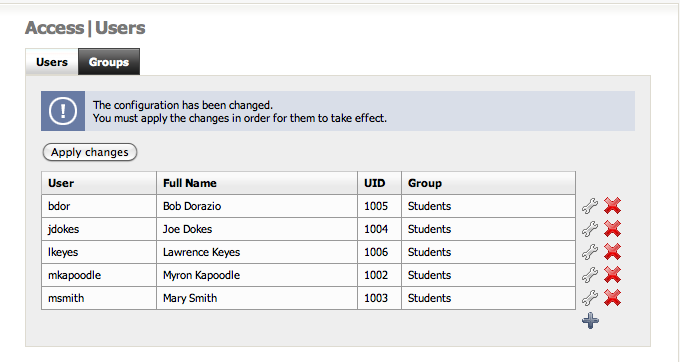
At the freeNAS console:
4. Create a folder on the server with the same name as the login name.
Example: I have a student named Myron Kapoodle, this person will get a folder called mkapoodle.

mdir /mnt/StudentData/mkapoodle

5. Give the student ownership of their folder, and allow the owner to read/write/execute within their folder.

chmod 700 /mnt/StudentData/mkapoodle
chown mkapoodle /mnt/StudentData/mkapoodle

6. At this point, the folder should be accessible from the network.  For example, from a Windows machine you can map a drive …

MAP H: \\freeNAS\StudentServer\mkapoodle
You’ll have to enter the name and password.
This may not be entirely foolproof in a lab situation with numerous students accessing the same workstation, so I’ve developed at least a partial solution which I’ll outline in a future post.

freeNAS File Server for Student Data

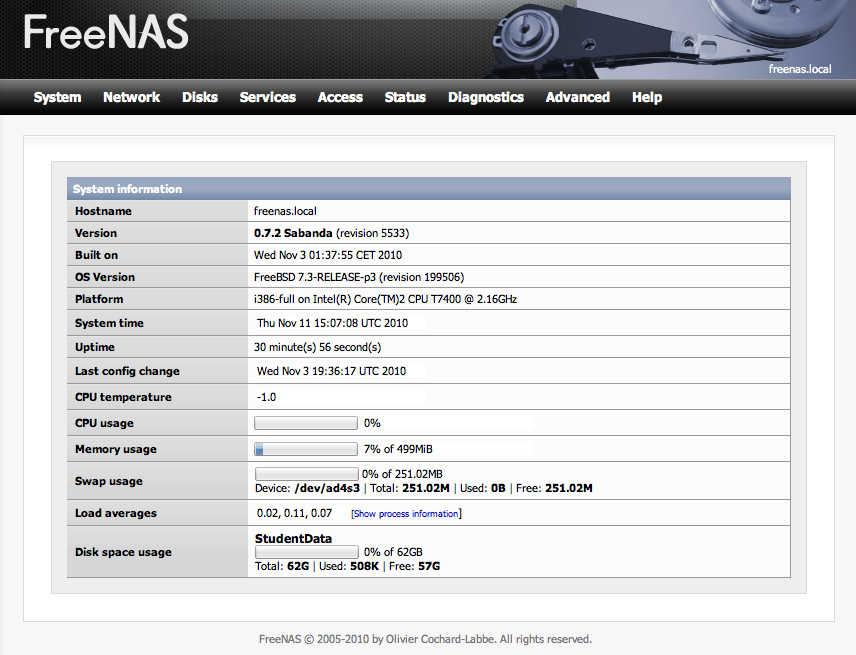
FreeNAS is an open source file server program based on BSD Unix. It is available as an .ISO file for downloading and burning to a CD. It will work in 256Kb of memory. While freeNAS is ideal as a “home” server using an older PC, it scales to modern server hardware. Out of the box it provides software RAID (provision for redundant disks) and it can work as a server for Windows, Apple Macintoshes, or Linux workstations. There are several installation guides available, and you can have a basic Windows server up and running within thirty minutes. Here’s a look at the opening screen in the web management program. (Click the image to enlarge).

I’ve  installed it twice; once within a Parallels virtual machine on my MacBook Pro, and once on an older Dell Optiplex G270.

We are considering using freeNAS as a server for student work within one of our learning centers. Currently, students are save their files on USB thumb drives, but that seems to be a poor solution; the drives get lost, or infected with viruses. We don’t want the students on the “administration” network, so we are looking for alternatives. FreeNAS seems to be a good alternative to another Windows server. Our plan is to give students accounts on a FreeNAS server, which will give them a single folder that they can access from Windows XP and Windows 7 desktop machines, or Windows 7 laptops over a wireless network.

Most installation guides assume you are creating a home server for Windows workstations, and they bring you to the point to where any workstation can find the server, connect to it and store files. Our application requires that individual students have their own folder on the server, and that they cannot access anything else outside of that folder.  Further, we want the student to be able to log into the server independently of the local Windows workstation account. We don’t want to create separate profiles on each workstation for each student, because their is no guarantee that the student logs into the server from the same workstation each time.  The plan is to have the student map a drive letter to their freeNAS folder using a connection script that automates the NET USE command.

In addition to the link above, there is another more detailed installation guide at daily-cup-of-tech.

Skype 5.0 with Multipoint Video


The latest Skype, version 5.0 for Windows includes multi-point videoconferencing. We’ve tried it with up to four participants, and it works surprisingly well.  Skype fan-persons are waiting to figure out what the actual cost of this might be; right now multipoint is available for a 28 day free trial.  Point-to-point video calling works very well; on a par with the Polycom PVX application. We have tested on a variety of Windows platforms; Windows XP embedded, XP Pro, and Windows 7 Home and Pro with good and consistent results.  The interface is kind of a mess; but once the calls are connected, sound and video are outstanding. Like everyone else they are trying to integrate with FaceBook in version 5. 

Unfortunately, version 5 for some reason does not include the setting for receiving video calls full screen. So, our favorite application is broken in this version. Back to version 4.8!  
Linux and Mac versions of the Skype program are still miles behind the Windows version.  Multipoint video is promised soon for the Mac.  I have this fantasy, of a Linux version, with multi-point video, with a programmable interface that would allow stripping out all of the directory and calling stuff, and simply allow people to receive full-screen video calls.  Will this ever happen?

We’re also eagerly awaiting the SkypeKit, an updated version of the Skype API which should allow programmers to do wonderful things with Skype. Early beta users have been working on Skype TV applications that are embedded with some new televisions. We’d love to take part in the beta, but after being on the waiting list for some weeks, we are beginning to think we’ll never get the chance.  SkypeKit is due to be released in the first quarter of the new year. 

Windows 7 64 bit Setup Quirks

I’m setting up five laptops for use as classroom machines. Five is certainly beginning to approach the cusp of wishing that we had some kind of imaging software that would allow a single setup to be cloned to the other machines. These are Inspiron machines from Dell which cost about $650 (including Windows 7 Home Premium 64 bit). The hardware is OK…they come as a glossy black plastic machine with a typical full-sized Dell keyboard and a very adequate 15″ screen. While configuring, I installed a wireless Microsoft mouse, but the touchpad works well too.

The machines come with a 64bit version of Windows. The main advantage of this is that the machine can comfortably address more than 4 gigabytes of RAM. It doesn’t appear to speed things up at all, and indeed the machine takes forever to log off, (two-three minutes) and reboot, and the login also takes more than 30 seconds. Another disadvantage is that the 64 bit version of Windows requires 64-bit drivers for any hardware (such as printers), which can be an inconvenience when tracking down printer drivers. So, as a recommendation, the 64 bit version of Windows does not appear to have any advantage for an ordinary user, and indeed may even have additional disadvantages.

There is a batch script which asks for the name of the initial user account. On a couple machines this appeared to go forward after accepting a couple characters…. and there is no “back” button. So, the machine inadvertently creates a lame account name. When changing the account name, it doesn’t change the folder that the account uses, so now I’m stuck with an account called Student which has a local folder called Studnet.

Dell has made something of the fact that it doesn’t install a lot of crapware on its machine anymore, and indeed we don’t have to remove AOL. Still, there is an amazing array of tweaks to apply, and still a surprising amount of software to remove, much of it from Dell, but also default software from Windows. The default installation comes with a variety of pop-ups (Macaffee, Dell system restore,) and an almost constant stream of messages about the virus status, Silverlight updates, etc. Here is our current list of changes:

1. Change Desktop Theme back to Windows default
2. Reassign computer name — Requires reboot
3. Uninstall Dell Dock
4. Uninstall GoToAssist
6. Uninstall Windows Live
7. Uninstall Windows Live Additional Components
5. Uninstall McAffee anti-virus, etc., etc. (requires a restart) (takes a long time.)

6. Install Microsoft Office 2007
Add the 25 character Product Key
Customize — not available: Access, Office InfoPath, Outlook
Open up Word: Accept Updates

In Internet Explorer
7. Change home page
8. Change Search Provider from BING to Google
9. Download and install updates
10. Download and install Windows Security Essentials
Requires an update to SilverLight
Does a long scan
11. Open a PDF file to get rid of initial issue with licensing Adobe Acrobat
12. Install Logmein

The upshot is that it is really over with Windows XP and that is OK. Windows 7 seems to be better and more secure on many counts. Windows Security Essentials appears to be a great alternative to third-party virus scanner and malware scanners. Setup is still a pain; I think I’m averaging about 1.5 hours per machine….and even at the point that I’ve got them set up here, I have to take them to their ultimate end-site, and install the wireless networking and printer drivers for the local site.

Vista to Windows 7 upgrade on Mac Parallels


Earlier, I did a couple of fresh installations of Windows 7 and found it agreeable, so now I’m upgrading the Vista VM running on my iMac with Parallels 4.0. This has presented various points of interest .

1. You can do an in-place upgrade from Vista to Windows 7, but not from Windows XP.

2. I had to increase the size of the Parallels Vista VM disk from 30 gigs to 48 gigs to accommodate the installation files for Windows 7. You do this in Parallels through the Parallels Image Tool which expands the disk partition size. Before doing this is will merge any snapshots that you’ve taken. I had only a single snapshot that I had created when first installing Parallels a year ago. Rather than allow this merge, which would have taken several hours, I exited out of the program, deleted the snapshot through the snapshot manager, then reentered the Image Tool and performed the expansion in a about 30 seconds.

3. I increased the available RAM from 1 gig to 2 gigs, at least for the installation, since it was a stated requirement to have more than 1 gig. I may crank it back to 1 afterwards.

4. Among the steps during an upgrade, there is “Gathering files, settings and programs” The count of these was 414,061. That is not a misprint. Amazing, after less than a year of running this particular Vista workstation how much crap you accumulate. I’m also wondering at how they calculate the percentage in the upgrade status screen (above) which doesn’t seem to correspond with the numbers.

My guess is one reason XP isn’t supported for an upgrade is that XP still runs nicely on smaller, older machines, and these are probably not good candidates for a Windows 7 upgrade… notwithstanding the fact that Win7 is supposed to have a smaller footprint both in disk space and memory requirements than Vista. Accordingly, any machine that can run Vista should be able to accommodate Windows 7.

Twittering for Non-Profits

Much fiddling with Twitter. One thing that is great about Twitter is that it more or less seems to pass the five minute test. Two resources to help get past Initial Euphoria, and move to Potential Productivity include O’Reilly’s The Twitter Book.

There is also a pretty good on-line guide at FastForward,, albeit with a more corporate orientation. I admit that I cringe when I see tweets like “Insurance industry finds value in social media”. Oh goody. But there is a lot of provocative theory there which suggests why Twitter might be a great way to leverage awareness of your non-profit “brand”.

One thing that makes Twitter so cool is that they published their application programming interface (API) early on, thereby enabling third-party programmers to cook up all manner of search and ranking tools that can sample and mine the tweet stream. This is a terrific example of a company who took a simple idea, maintained control of the idea, and yet allowed others to add value to it. And Twitter the company was recently valued at 1 billion dollars. Not bad for a company with no revenue yet.

Here are several Twitter search tools… mostly shamelessly cribbed from The Twitter Book

What The Trend http://whatthetrend.com
Twitscoop http://twitscoop.com
Twopular http://twopular.com
Twitters own Advanced Search found as a link near the search box on the normal twitter search page.

For some examples of what non-profits are doing with Twitter, there is a discussion on Mashable. Other comments and ideas are on Beth Kanter’s blog,”How Non-Profits Can Use Social Media”

Tech Friday: Video-The Right Tool For The Job

Two Stories: 

I

I’ve been participating in a entrepreneur boot camp of sorts which requires us to create slide show presentations to introduce our company. Because the leader is using an older Dell laptop with Microsoft Office 2003 installed, we are required to create these presentations to run on PowerPoint 2003 on her laptop. After the presentations have been created, our team was asked to record a voice-over to accompany these slides. This was recorded using Audacity on a Windows machine using a Samson condenser microphone with a USB interface. We did it in a couple of takes, and listened to the playback. All seemed well, although the team expressed some trepidation at attempting to synchronize the playback of the audio with the individual slides, a finicky process which would take some hours.  So the question is, why not use the sound recording function in PowerPoint 2007, (Windows) or Keynote ’09 (Mac)? 

II

We’ve been engaged in a study comparing a 15 week exercise program delivered in three “modes”, 1.) a live class at the ‘Y’, 2.) an interactive version delivered over the internet using multi-point two-way videoconferencing, and 3.) a DVD version of the program.  As part of our telemedicine project we had a contractor create a version of our program for delivery on DVD. We shot great footage with professional audio, lighting, and camera work. The footage was edited to create a 15 week version of our program.  Once the raw edits were created, we sent them off to a DVD guru who used one of those $1,200 authoring programs to put it together.  The result was OK, but non-intuitive. The users of the DVD basically hated it and several dropped out of the study.  
Now, a year has past and the study subjects who participated in the live session and those who took the interactive tele-version of the program want to have a DVD version of the program as a reference so that they can continue their exercise. We decided to provide them with a free DVD, using clips recorded from the telemedicine session. I combined these using iMovie ’09 and the result is better than the original professional DVD. (!)  I subsequently bought David Pogue’s Missing Manual book on iMovie and iDVD and am looking forward to re-doing our original DVD as well as create some promotional material for sharing on the web.  
Now, video editing isn’t my favorite pastime, but it is certainly no worse than grant-writing, and if the results are near-professional, then why not take advantage of what has really become a disruptive technology? 
On the other hand, here is an example of Eva Sollberger’s Stuck in Vermont video blog. Eva is a one-person video production company. She shoots, edits and publishes. This particular episode is about 6-8th graders creating their own news show.  It sure beats Channel 5 eyewitness news. 
 

Tech Friday — WES and Ruby

Microsoft has made available considerable information about Windows Embedded Standard, (WES) which is the latest version of Windows Embedded, based on Windows XP.

There are (roughly) three versions of embedded operating systems from Microsoft:

Windows Embedded Standard: Allows a stripped down version of Windows XP for powering set-top boxes, game boxes, and machines dedicated to a single application. This is what we’re using in one version of our telemedicine set-top box.

Windows Embedded POS: An enhanced version of WES for cash registers and checkout scanner applications.

Windows Embedded CE: This is the version of Windows used for mobile phones and other hand-held and portable devices. The code base and software development tools for CE are different than Windows Embedded, with many of these related to WES.

There are a total now of twenty-nine (29!) training videos related to Windows Embedded Standard.

The Windows Embedded Developer Center site is the gateway on Microsoft’s Developer Network to all things related to Windows Embedded.

The Windows for Devices web site has information related to all version of Window Embedded as well as hardware that runs under Windows Embedded.

Other Notes:

Smashing Magazine has a nice introduction to Ruby on Rails.

Tech Friday: Programming the Logitech Orbit Webcam

Just dabbling.

The Logitech QuickCam Orbit AF Webcam is a motorized point/tilt/zoom (PTZ) web camera with outstanding resolution and performance. Logitech has provided some additional documentation on manipulating the webcam. In Windows this is done through the DirectView API. To get as far as “Hello World”, i.e just to demo the whole thing, I first downloaded a sample C++ program provided by Logitech called. PTZ.exe Then I realized that I better see if the camera works in the first place, so I downloaded the current QuickCam driver set qc1150 from the Logitech site. Once that was installed, it worked fine when testing.

Then I tested PTZ.exe. This seemed to work fine. It is a command line program which does the following:
* Scans existing USB ports to find the webcam.
* Issues a series of commands to exercise the mechanical and digital PTZ functions of the camera.

Because my camera is an older version, just the zoom seemed to work. I’ll have to test it again with current AF.

Since PTZ.exe also comes as C++ source code, I downloaded and installed Visual Studio C++ Express Edition. This is the free version of Visual C++ . I opened the PTZ “solution”, when showed the various header files, and the main routine in a “folder” hierarchy to the left of a standard editing pane.


[Click picture to see full size]

Just like old times. You compile. You link. You run the application in a command box. This all works pretty reliably, even in Vista, running on my Mac through Parallels.

I then downloaded a USB port sniffer, and watched the messages merrily going to and fro between the web cam and the USB port. Much more on USB in Jan Axelson’s books and on her web site.

Next steps: Get the proper webcam, and try modifying the PTZ program myself to see if I can change the parameters. Oh, and maybe get a proper Windows development system.

By the way, the Logitech support forum has support for Linux and Solaris.

Tech Friday: Small Business Network

In a recent column  Jerry Pournelle talks about problems with the Microsoft Active Directory.  

Back in 1999 I set up the Chaosmanor domain with Active Directory on two machines running Windows 2000 Server. I knew at the time that I didn’t need that complex a network, but a number of my readers did. In those days networking was hard, Active Directory was new, and many of my associates were curious about how well it would work. At worst this was another of those silly things I do so you won’t have to.

Actually, it worked pretty well. Windows Server 2000 with Active Directory had some infuriating requirements, and it really wanted everything done precisely its way, but from 1999 until this year it served me well. When Windows Server 2003 came out I was tempted to upgrade to that, but there was never any powerful reason to do so, and as time passed it seemed less attractive. I had novels to write and other work to do. I was able to try several Linux-based on-line backup systems – Mirra was one of them – and those worked just fine. Of course machines were getting better, and my old servers were getting more obsolete each year.

Now he thinks that everything he knew about networking is wrong. In particular, like many of us, his experience carried over from older versions of Windows networking, which makes things a lot more complicated than they need to be these days. You can reads more about workgroups, domains and routers and alternatives to Windows networking in the column.

At Microdesign we are reevaluating our own network, that has a core server running Windows 2003 Small Business Server; i.e. relatively unchanged for the past five years. Nothing has really changed as far as our core requirements are concerned, except there are several of us working from different offices, and on occasion when traveling. We increasingly collaborate on projects with partners who are outside our company. Our requirements parallel many small businesses and non-profits with 2-50 computer users. Here are our “legacy” requirements:

  1. Common file sharing area where multiple users/machines can access the same document
  2. Absolute trustworthy security of those files
  3. eMail and calender – available from anywhere on multiple devices
  4. Shared printing, from multiple machines to single printers.
  5. Reliable backup 

Those modest requirements suggest a file and print server based in the office, connected permanently to the internet, with printers shared off of the file server, and some kind of backup scheme (tape or additional hard drive). The network diagram which fulfills these requirements is essentially unchanged from the 1990’s.

Even with a server-centric network our advice to clients has always been to use the facilities of an internet service provider for two applications; eMail and the outward-facing (public) web server for the organization.  We (still) recommend having eMail outside the organization to provide greater reliability, ubiquitous access via the web, and industrial-strength spam control. We recommend the organization’s public web site be hosted outside the organization to provide 99.99% uptime, and to take advantage of higher bandwidth typically provided by an hosted provider. 

So, what has changed? Two things; disk storage and broadband. Broadband, or rather cheap broadband, has made it possible to reconfigure things so that the cloud  can now substitute or supplement a file server. With individual personal computers routinely having disk drives of 250 gigabytes or larger, the original justification for “server as giant hard disk” is falling away. 
Along with hardware improvements, there are now a host of inexpensive applications available on the internet that can supplement or replace software that used to require a file server. Basecamp is one example that can be used for project management and shared file storage. 

A more modern interpretation of the legacy network diagram puts the cloud at the center of the network.

So, I’m wondering whether to replace my file server. The server is no longer the be-all end-all of my network. Like Jerry, I don’t need a domain login mechanism. I barely use my printers, and those are attached directly to the local network. The small business server’s eMail, and web hosting have always been done off-site. The server does offer SharePoint, which is a capable platform for Basecamp-like project management, but Basecamp is about $12.00 per month, and it took about five minutes to set up. And, now that we have been invaded by the Macintosh monster…there are more reasons to find, (or at least evaluate) a cross-platform solution for our application needs.