Category Archives: Uncategorized

Get-StateAbbreviation

Here is an updated version of my state abbreviation function, with changes prompted by Jeffery Hicks.
I’ve also added the Canadian provinces to the mix. The main change (apart from changing the name of the function to conform to the conventional Powershell verb-noun nomenclature), is to add the CmdletBinding section to specify a single parameter which needs to be supplied to run the function. The neat thing about this is that if you issue the command without the parameter it will automatically prompt for input.

function Get-StateAbbreviation {
#
# Takes upper, lower, or mixed case state name
# and return the two-letter abbreviation. 
# LK 3/17/15  rev. 3/26/15 per Jeffery Hicks 

# Still To Do: 
#   1. Full documentation 
#   2. Allow input from the pipeline 
#   3. Place in a module 

# Example calls: 
#   Get-StateAbbreviation Vermont     <-don't use parentheses
#   Get-StateAbbreviation -StateName Vermont
#   Get-StateAbbreviation "Vermont"
#   Get-StateAbbreviation $MyStateName 
# Note that this function has to appear before it is called in the code
# if it isn't part of a module. 

[CmdletBinding()]
param (
[Parameter(Mandatory=$True)]
   [string]$StateName
)

Switch ($StateName.ToUpper()) {

($StateName="ALABAMA")        {$shortenState="AL"}
($StateName="ALASKA")         {$shortenState="AK"}
($StateName="ARIZONA")        {$shortenState="AZ"}
($StateName="ARKANSAS")       {$shortenState="AR"}
($StateName="CALIFORNIA")     {$shortenState="CA"}
($StateName="COLORADO")       {$shortenState="CO"}
($StateName="CONNECTICUT")    {$shortenState="CT"}
($StateName="DELAWARE")       {$shortenState="DE"}
($StateName="FLORIDA")        {$shortenState="FL"}
($StateName="GEORGIA")        {$shortenState="GA"}
($StateName="HAWAII")         {$shortenState="HI"}
($StateName="IDAHO")          {$shortenState="ID"}
($StateName="ILLINOIS")       {$shortenState="IL"}
($StateName="INDIANA")        {$shortenState="IN"}
($StateName="IOWA")           {$shortenState="IA"}
($StateName="KANSAS")         {$shortenState="KS"}
($StateName="KENTUCKY")       {$shortenState="KY"}
($StateName="LOUISIANA")      {$shortenState="LA"}
($StateName="MAINE")          {$shortenState="ME"}
($StateName="MARYLAND")       {$shortenState="MD"}
($StateName="MASSACHUSETTS")  {$shortenState="MA"}
($StateName="MICHIGAN")       {$shortenState="MI"}
($StateName="MINNESOTA")      {$shortenState="MN"}
($StateName="MISSISSIPPI")    {$shortenState="MS"}
($StateName="MISSOURI")       {$shortenState="MO"}
($StateName="MONTANA")        {$shortenState="MT"}
($StateName="NEBRASKA")       {$shortenState="NE"}
($StateName="NEVADA")         {$shortenState="NV"}
($StateName="NEW HAMPSHIRE")  {$shortenState="NH"}
($StateName="NEW JERSEY")     {$shortenState="NJ"}
($StateName="NEW MEXICO")     {$shortenState="NM"}
($StateName="NEW YORK")       {$shortenState="NY"}
($StateName="NORTH CAROLINA") {$shortenState="NC"}
($StateName="NORTH DAKOTA")   {$shortenState="ND"}
($StateName="OHIO")           {$shortenState="OH"}
($StateName="OKLAHOMA")       {$shortenState="OK"}
($StateName="OREGON")         {$shortenState="OR"}
($StateName="PENNSYLVANIA")   {$shortenState="PA"}
($StateName="RHODE ISLAND")     {$shortenState="RI"}
($StateName="SOUTH CAROLINA")   {$shortenState="SC"}
($StateName="SOUTH DAKOTA")     {$shortenState="SD"}
($StateName="TENNESSEE")        {$shortenState="TN"}
($StateName="TEXAS")            {$shortenState="TX"}
($StateName="UTAH")             {$shortenState="UT"}
($StateName="VERMONT")          {$shortenState="VT"}
($StateName="VIRGINIA")         {$shortenState="VA"}
($StateName="WASHINGTON")       {$shortenState="WA"}
($StateName="WEST VIRGINIA")    {$shortenState="WV"}
($StateName="WISCONSIN")        {$shortenState="WI"}
($StateName="WYOMING")          {$shortenState="WY"}
($StateName="WASHINGTON DC")    {$shortenState="DC"}
($StateName="ALBERTA")               {$shortenState="AB"}
($StateName="BRITISH COLUMBIA")      {$shortenState="BC"}
($StateName="MANITOBA")              {$shortenState="MB"}
($StateName="NEW BRUNSWICK")         {$shortenState="NB"}
($StateName="NEWFOUNDLAND")          {$shortenState="NL"}
($StateName="LABRADOR")              {$shortenState="NL"}
($StateName="NORTHWEST TERRITORIES") {$shortenState="NT"}
($StateName="NOVA SCOTIA")           {$shortenState="NS"}
($StateName="NUNAVUT")               {$shortenState="NU"}
($StateName="ONTARIO")               {$shortenState="ON"}
($StateName="PRINCE EDWARD ISLAND")  {$shortenState="PE"}
($StateName="QUEBEC")                {$shortenState="QC"}
($StateName="SASKATCHEWAN")          {$shortenState="SK"}
($StateName="YUKON")                 {$shortenState="YT"}

Default {$shortenState="XX"}

} # Switch 

return $shortenState

} # Function

Create U.S. State Abbreviations from State Names

function shortenState([string]$longName) {
# LK 3/17/15
# Takes upper, lower, or mixed case state name
# and returns the two-letter abbreviation.
# Example call:
#   shortenstate Vermont     <-don't use parentheses
#   "Vermont" | shortenState <- sent via a pipe
# Note that this function has to appear *before* it is called in a Powershell script.
Switch ($LongName.ToUpper()) {

  ($LongName="ALABAMA")        {$shortenState="AL"}
  ($LongName="ALASKA")         {$shortenState="AK"}
  ($LongName="ARIZONA")        {$shortenState="AZ"}
  ($LongName="ARKANSAS")       {$shortenState="AR"}
  ($LongName="CALIFORNIA")     {$shortenState="CA"}
  ($LongName="COLORADO")       {$shortenState="CO"}
  ($LongName="CONNECTICUT")    {$shortenState="CT"}
  ($LongName="DELAWARE")       {$shortenState="DE"}
  ($LongName="FLORIDA")        {$shortenState="FL"}
  ($LongName="GEORGIA")        {$shortenState="GA"}
  ($LongName="HAWAII")         {$shortenState="HI"}
  ($LongName="IDAHO")          {$shortenState="ID"}
  ($LongName="ILLINOIS")       {$shortenState="IL"}
  ($LongName="INDIANA")        {$shortenState="IN"}
  ($LongName="IOWA")           {$shortenState="IA"}
  ($LongName="KANSAS")         {$shortenState="KS"}
  ($LongName="KENTUCKY")       {$shortenState="KY"}
  ($LongName="LOUISIANA")      {$shortenState="LA"}
  ($LongName="MAINE")          {$shortenState="ME"}
  ($LongName="MARYLAND")       {$shortenState="MD"}
  ($LongName="MASSACHUSETTS")  {$shortenState="MA"}
  ($LongName="MICHIGAN")       {$shortenState="MI"}
  ($LongName="MINNESOTA")      {$shortenState="MN"}
  ($LongName="MISSISSIPPI")    {$shortenState="MS"}
  ($LongName="MISSOURI")       {$shortenState="MO"}
  ($LongName="MONTANA")        {$shortenState="MT"}
  ($LongName="NEBRASKA")       {$shortenState="NE"}
  ($LongName="NEVADA")         {$shortenState="NV"}
  ($LongName="NEW HAMPSHIRE")  {$shortenState="NH"}
  ($LongName="NEW JERSEY")     {$shortenState="NJ"}
  ($LongName="NEW MEXICO")     {$shortenState="NM"}
  ($LongName="NEW YORK")       {$shortenState="NY"}
  ($LongName="NORTH CAROLINA") {$shortenState="NC"}
  ($LongName="NORTH DAKOTA")   {$shortenState="ND"}
  ($LongName="OHIO")           {$shortenState="OH"}
  ($LongName="OKLAHOMA")       {$shortenState="OK"}
  ($LongName="OREGON")         {$shortenState="OR"}
  ($LongName="PENNSYLVANIA")   {$shortenState="PA"}
  ($LongName="RHODE ISLAND")   {$shortenState="RI"}
  ($LongName="SOUTH CAROLINA") {$shortenState="SC"}
  ($LongName="SOUTH DAKOTA")   {$shortenState="SD"}
  ($LongName="TENNESSEE")      {$shortenState="TN"}
  ($LongName="TEXAS")          {$shortenState="TX"}
  ($LongName="UTAH")           {$shortenState="UT"}
  ($LongName="VERMONT")        {$shortenState="VT"}
  ($LongName="VIRGINIA")       {$shortenState="VA"}
  ($LongName="WASHINGTON")     {$shortenState="WA"}
  ($LongName="WEST VIRGINIA")  {$shortenState="WV"}
  ($LongName="WISCONSIN")      {$shortenState="WI"}
  ($LongName="WYOMING")        {$shortenState="WY"}
 
Default {$shortenState="XX"}
  } #switch

return $shortenState

} # function shortenState

# The following lines import a .csv file, and modify the state field
# to the two-letter abbreviation 

$Deliveries=Import-Csv "c:userslarrypowershellworldship.csv"

$Deliveries | Foreach-Object ($_) {

  if ($_.State.length -gt 2) {$_.State = shortenState($_.State)}

}

Pseudo-Sync for DropBox and iPad

I’m a Dropbox partisan. Dropbox works really well between multiple platforms as “personal cloud”. The wonderful thing about Dropbox is that it allows you to work locally on a file, whether you are connected to the internet or not, and then it will synchronize any changes that you have made to the source file in the cloud. This can legitimately be called syncing, because you end up with the same version of the file on all devices (and the cloud folder), once the changes have been made.

Except for iDevices. At least for Dropbox,

Even with the Dropbox app installed, the familiar syncing process that works so smoothly on desktops and laptops isn’t present on the iPad. The reason for this is that on actual computers Dropbox maintains copies of all files on all devices and the cloud. On the iPad that might be both a problem with storage space, and also a problem with the amount of data that is transferred.

This has come up with FileMaker files that are opened using the FileMaker Go app on the iPad. I’d prefer to go to the Dropbox app, find my FileMaker database file, and “Open in FileMaker Go”, which is, in fact the procedure that one uses to download and use the FileMaker file on the iPad for the first time.

1. Here’s the file shown in the Dropbox App.  It is called UCHealth.fmp12 and it is an exercise tracking application.

2. Choose the file, then, choose the Open icon (third from the right on the top, the box with the arrow).

Here FileMaker isn’t shown,  but if you tap the “Open In” application icon ….it will bring up additional options:

Tap the FileMaker Go icon, and the file is downloaded from Dropbox, and will be displayed in  FileMaker Go’s file listing for local files on the iPad

However, once the file is opened, it is copied to the iPad and it stays on the iPad. Changes to the file (new records, edited records, etc), are NOT synced back to the Dropbox cloud file.

The fix for this is a bit convoluted, but at least it works. It involves a manual copy of the file back to the Dropbox cloud.

1. In Dropbox, Delete the cloud version of the file. (If you are doing this next to your desktop computer you may see a notification on the desktop telling you that the file has been deleted from Dropbox.

2. In FileMaker Go – be sure to close the file.
a. Select the upper left menu, and choose Windows

Close the application window. (in this example, close the UCHealth application.)
That will bring you back to the file browser.

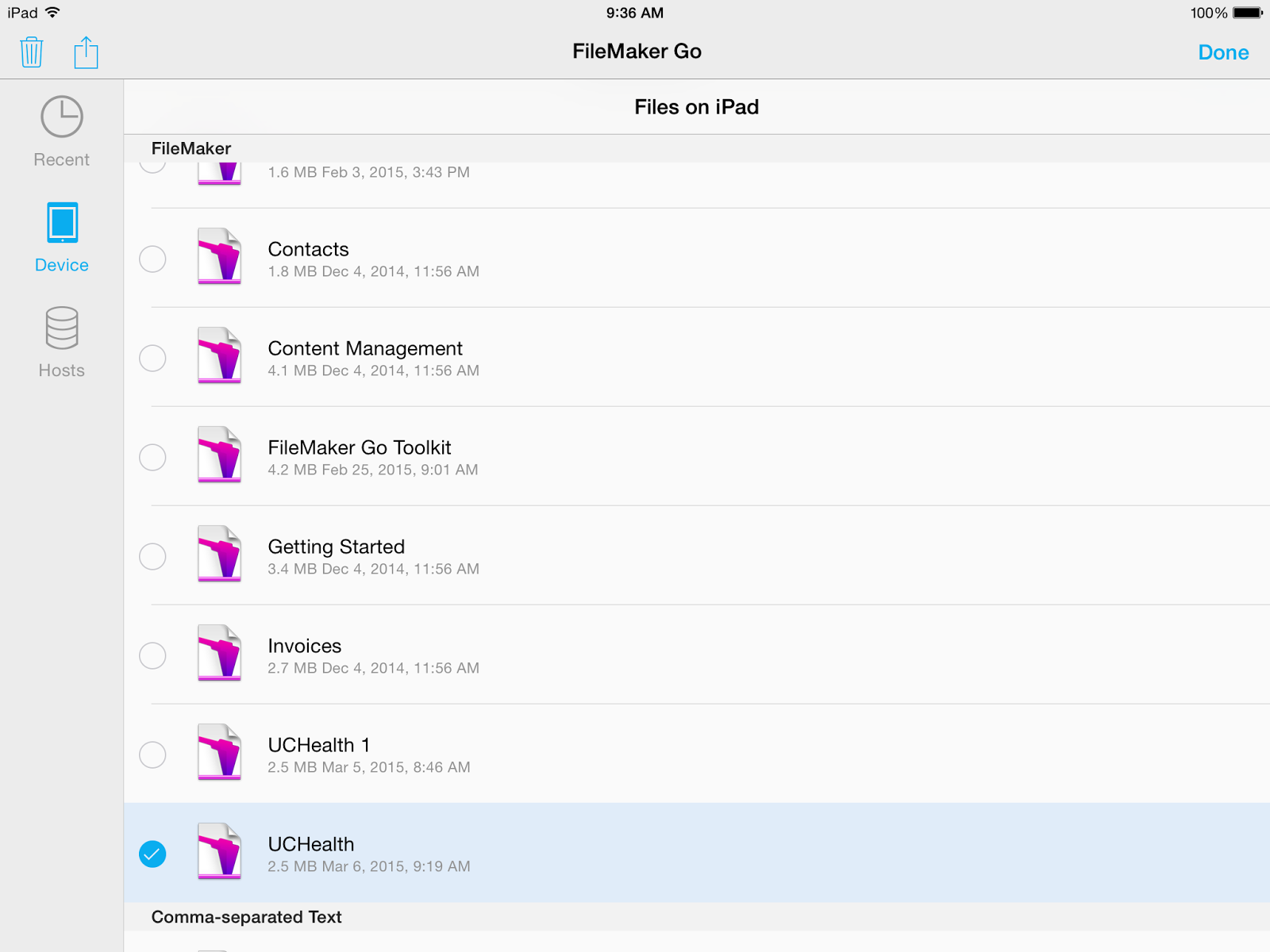
3. In FileMaker Go, choose “Device”  This will show the list of files that on the iPad.

4. Choose the upper right icon to “mark” the file. This is the (turned down page).
5. Choose the upper left “export” icon to export (square with arrow)

6. Choose “Open in Dropbox”

 7. Choose “Save”

Depending on the size of the file there may be a delay as the file is copied to the Dropbox. And of course, this process doesn’t work unless you are connected to the network.

This whole process isn’t elegant, and is only workable for a single person moving files around.  But it works.

Better than eMail: Slack for Workgroup Communication

We’re slacking off here at our non-profit organization, having discovered Slack, a cloud-based communication application that combines the functions of eMail, chat, a bit of artificial intelligence (called the Slackbot), and the ability to exchange transactions with a growing number of third-party applications including the Trello project manager. Slack solves the problem of team communication for specific topics or projects.

Let’s say you are launching an e-Shop. You have the web developer, the graphic designer, the photographer, the shop manager, the back-end developer and the testers working on the project. You have calendar schedules, product photos, text copy, html and .css files all in half-a-dozen sites and places; Google Drive, Trello, your calendar, the file server, the production web site, and the sandbox web site. All this is glued together using eMails with copies to the team… each person has their own copy of the email (you hope), and relevant attachments or links to files on Google Drive, Dropbox,  your web server, or your file server. Its all a bit diffuse, and if anyone wanted to come up to speed on the whole project, then it would probably be pretty tough, because everything about the project isn’t in one place.

Nine years ago, I was using Basecamp for several projects including grant applications. I have used Basecamp for many years, and sung its praises for writing grants, which is by nature a collaborative process with multiple players. About 2012, Basecamp got a major upgrade which seemed to break my workflow and processes. So, I started looking around at the alternatives, and there are a bunch.

The basic unit of Slack is the team.

Teams can create channels. Channels can be for a single department, or a single project. So, for our team we created a channel for each department:

  • creative
  • development
  • admin
  • it
  • programs
Departments store their ongoing conversations within their channels. These are things that might have been communicated via eMails and attachments.  Slack can store text in a couple of structured ways; you can have a message, a snippet, or a post. A message is a simple unformatted text message similar to a chat message. (You can include emoticons). A snippet can be formatted for programming code. Finally, a post is similar to a blog post, it includes a title, and allows formatting
with fonts and bullets.

For current projects that cross individual departments, we created specific channels.

  • eStore-Launch
  • XYZ Grant Application
  • 2015 Audit
Team members can be part of any channel, and you can invite guests who are external to the team to participate in an individual channel.  
This would all be pretty spectacular on its own, but one of the strengths of Slack is the ability to integrate with other third-party applications. We are using Slack with Trello, so that any changes made on a Trello project, get reflected in the appropriate Slack project. The integration results in what amounts to a major enhancement of both applications. 
Slack is free for basic functionality, and maybe all you ever need. Worth a look! 

Manage Linux Log Files

We were looking at log files in our various servers, with the idea that we could delete them to reclaim some disk space, but if they are properly set up with the logrotate command, they will be kept to a manageable size automatically. 

Log files live in /var/logs. There may be subdirectories within /var/logs for specific applications such as mySQL. 
Log files generally are managed through the logrotate command.  This is the program which deletes old logs, and stores and renames older versions of logs based on specifications that you put in to the logrotate.conf file.  The logrotate.conf file is typically located in /etc. It can contain defaults for all logs, and specifics for particular log files.  BUT….. 
Ugh.  Although the default specs for logs is the logrotate.conf file, some programs store their parameters elsewhere.  These include programs like apache, linuxconf, samba, cron, and syslog. 
The include parameters will read the contents of these other log parameter files, and include them in the logrotate.conf.  
(Note…these are the log configuration files,  not the log files themselves, which still appear in /var/log 
cat /etc/logrotate.d/httpd
/var/log/httpd/*log {
    missingok
    notifempty
    sharedscripts
    postrotate
        /sbin/service httpd reload > /dev/null 2>/dev/null || true
    endscript
The upshot is that most log files in /var/log will either be the current active log file for an application, or an archived version.  If the archives are compressed, then the suffix for the file will be .gz  

Reading the logs for user log-ins.  

Log files for logins, which contain the user name, time of access, and from where, are contained in two log files,  wtmp, and btmp.  On some systems there is also a utmp file. 
These are binary files, so that when accessed using cat, they will show gibberish. 
However, the last command will format them correctly.  
lastb shows the failed login attempts  (from wtmp)  – BSD
last shows successful login attempts.  (from btmp)  – BSD 
lastlog on Red Hat machines will also read the logins file. According to Wiki, this is “similar to last and lastb”, but last parses a different database (wtmp and btmp). 
tail -n30  shows the last 30 lines of a log file. 
tail  by default shows the last 10 
cat /proc/version  shows the version of linux 
df -h shows the installed hard disk(s) and their useage. 
cat /etc/passwd shows all of the user accounts. 
more, less for paging.  (less allows for paging backwards) 

Powershell: Limit API iterations in a single call

Problem:

Many APIs limit the number of iterations that you can make in a single API call. For example, Brightpearl limits you to getting information for a maximum of 200 orders in a single API call. If you place a call with more than 200 orders, it will simply return an error message. SmartyStreets also places a limit of 100 addresses that you can validate with a single API call.

Solution:

Dave Wyatt at PowerShell.org provides the following solution.

Lets assume there is an array of 1000 addresses which are returned by convertfrom-csv. Here are the first couple of records from the original .csv file.

PS>cat lapsed.csv
Addressee,first,spouse,Organization,Street,City,State,ZIP
Joe Dokes,Joe, Mary,,,601 W 57TH St Apt 361,New York,NY,10019
Mary Smith ,Mary,Howard,,347 Poor Farm Rd,Colchester,VT,05446
Lu-Anne Jorden,Lu-Anne,Jess,,9603 North Kiowa Rd.,Parker,CO,80138

Here is the command that we use to read in the list into the variable $bigLlist

$bigList =(cat lapsed.csv | convertfrom-csv | 
Select-Object Addressee, Organization, Street, City, State, Zip )

$bigList is a custom object with the following layout:

PS>$biglist | get-member
TypeName: Selected.System.Management.Automation.PSCustomObject
Name         MemberType    Definition 
----         ----------    ---------- 
Equals       Method        bool Equals(System.Object obj) 
GetHashCode  Method        int GetHashCode() 
GetType      Method        type GetType() 
ToString     Method        string ToString() 
Addressee    NoteProperty  System.String Addressee=Kamal Aboul-Hosn 
City         NoteProperty  System.String City=New York 
Organization NoteProperty  System.String Organization= 
State        NoteProperty  System.String State=NY 
Street       NoteProperty  System.String Street=601 W 57TH St Apt 361
ZIP          NoteProperty  System.String ZIP=10019

If you look at this in Powershell, it prints out the contents of each record.

Addressee    : Joe Dokes
Organization :
Street       : 109 Fern Ct.
City         : Delray Beach
State        : FL
ZIP          : 33444

Addressee    : Mary Smith
Organization :
Street       : 205 Dorado Dr
City         : Cherry Hill
State        : NJ
ZIP          : 08034

Addressee    : Lu-Anne Jorden
Organization :
Street       : PO Box 81666
City         : Fairbanks
State        : AK
ZIP          : 99708

Ok, so now we have the full list as an object. The list now needs to be subdivided into groups of 100.

$counter = @{ Value = 0 }
$groupSize = 100
$groups = $bigList | Group-Object -Property { [math]::Floor($counter.Value++ / $groupSize) }

The $counter variable is a hash table, initialized to zero.
The $groupsize variable is the size of the individual group that can be sent. In our example it is set to 100, for a maximum of 100 addresses to be sent at a time.
The $groups variable creates a custom object, with the following members:

PS>$groups | gm
   TypeName: Microsoft.PowerShell.Commands.GroupInfo

Name        MemberType Definition                                                      
----        ---------- ----------                                                      
Equals      Method     bool Equals(System.Object obj)                                  
GetHashCode Method     int GetHashCode()                                               
GetType     Method     type GetType()                                                  
ToString    Method     string ToString()                                               
Count       Property   int Count {get;}                                                
Group       Property   System.Collections.ObjectModel.Collection[psobject] Group {get;}
Name        Property   string Name {get;}                                              
Values      Property   System.Collections.ArrayList Values {get;}                      

If you print out the contents of $groups, you see the following list. (I’ve truncated for readability…)

PS>$groups
Count Name     Group                                                                                                              
----- ----     -----                                                                                                              
  100 0        {@{Addressee=Kamal Aboul-Hosn; Organization=; ...
  100 1        {@{Addressee=Chandler Dawson; Organization=; ...   
  100 2        {@{Addressee=Sidsel Heney; Organization=; ...
  100 3        {@{Addressee=John Marchetti; Organization=; ...
  100 4        {@{Addressee=Jane Ramsey; Organization=; ...
   59 5        {@{Addressee=James Tulloh; Organization=; ... 

This shows that I have 559 names in the original file which has been divided up into 5 groups of 100 and one of 59 names.

The next and final step is to iterate through each group and make the API call.

 
foreach ($group in $groups)
{
    $littleList = $group.Group | ConvertTo-Json
  
$Output = Invoke-RestMethod -Uri $Uri -Body $littlelist -ContentType application/json -Method Post 
}

The steps are:
For each group
Convert the addresses in one group to JSON
Assign it to the variable $littlelist
Send the contents of $littlelist as the body of the API call.
End Loop.

Debugging in PowerShell

The PowerShell integrated scripting environment (ISE) has many of the trappings of a full-fledged programming GUI, including a capability for debugging with breakpoints. There is a TechNet article on debugging from which this discussion is cribbed.  The ISE has a subset of the command-driven breakpoint capability, in that it only allows the setting of line breakpoints. In the command environment, you can also set variable breakpoints, which execute when the value of a variable changes, and command breakpoints, which execute when a certain command is reached.

Breakpoints can only be set for a script that has been saved.

In the ISE window a breakpoint can be set from the debug menu, (Toggle Breakpoint)  or by pressing F9 when the cursor is on the line that you want to use for the breakpoint.  Once set, the line will be highlighted.

After setting a least one breakpoint, you can run the single-stepper. This executes the script one line at time.

Step Into: Executes the current statement and stop at the next statement. If the statement is a function or script, it goes into the function or script and then stops.  F11

Step Over: Execute the current statement and stop at the next statement.  If the statement calls a function or script, it executes the function or script and then returns to the next statement in the original script. F10

Step Out: Executes the current function and then returns to the level above in the call stack. If there are statements remaining in the sub-function, those are executed before the return. Essentially this is something like “finish running this function, and return…”

Continue: Execute to the next breakpoint without single-stepping.

What I’ve been doing as I’ve been learning PowerShell is single stepping through a script, which allows me to look at the effect of a single statement before moving on to the next statement.  This involves setting a breakpoint a the top of the script, and then hitting F11 to toggle through the script.

Calling sub-scripts.

Scripts can be called from other scripts using the Invoke-Expression commandlet.  Example:

Invoke-Expression -Command ./PSFTPDEMO.ps1

If the subscript is located in the current working directory, or within the same directory as the main script, it needs to be prefaced with the ./ path as shown above.

The subscript inherits all variables from the main script unless those variables are declared private in the main script.

PowerShell: Formatting Dates

In Brightpearl, if you want to select orders from a specific date, the date needs to be entered in the format of YYYY-MM-DD. By default PowerShell returns dates in a format based on your “culture” setting; in the U.S. this means the default is MM-DD-YYYY. (Who made this up by the way?) In fact…a standard call to the Get-Date returns a “long date / time” string.

PS>Get-Date
Thursday, November 20, 2014 12:46:19 PM

To just get the date, you add a couple parameters:

PS>Get-Date -DisplayHint Date -Format d
11/20/2014

This returns the system date in the default culture format.

To transform this to YY-MM-DD, there is a parameter which takes a Unix format string.

PS>Get-Date -UFormat %Y-%m-%d
2014-11-20

TechNet has a reference for all of the possible combinations and strings for the UFormat parameter.

Here’s the format for an order search using a hard coded date.
PS>$BPOrders=Invoke-RestMethod `
-Uri http://ws-use.brightpearl.com/public-api/nationalgardening/order-service/order-search?placedOn=2014-11-20 `
-Headers $headers `
-Method Get

We can put the date in a variable, and use that in the API call:

$Today=Get-Date -UFormat %Y-%m-%d

$BPOrders=Invoke-RestMethod `
-Uri http://ws-use.brightpearl.com/public-api/nationalgardening/order-service/order-search?placedOn=$Today `
-Headers $headers `
-Method Get

Odds and Sods

FileMaker 13 is back at Tech Soup. A one-year subscription to FileMaker Server is $649. A full license for FileMaker Pro (the desktop client) is $194. Unfortunately, they don’t offer non-profit pricing for FileMaker Pro Advanced at TechSoup, but you can inquire directly at FileMaker, where there are frequent deals. During November they are offering a 2 for 1 deal for FM Pro and FM Advanced when you buy direct.

PITA of the week: The new OSX Yosemite transmits search data by default to Apple, Microsoft, and god-knows-where. This is a reversal from previous versions of OSX. There is a fix.

Powershell is turning out to be pretty amazing. There is an entertaining introductory video series from Microsoft Virtual Academy which includes Jeffery Snover, the original PowerShell author who explains why they do things the way they do.  

Ozzie Zehner is a green-technology skeptic, in the sense that he suggests that our infatuation with alternative energy like photovoltaics and windmills really perpetuates the energy status quo. His top suggestions for committed environmentalists; empower women and girls.

Green Illusions pioneers a critique of alternative energy from an environmental perspective, arguing concerned citizens should instead focus on walkable communities, improved consumption, governance, and most notably, women’s rights.

PowerShell: Moved to new blog

PowerShell was clogging up Tech For Non-Profits. For the past several weeks I wrote a bunch of posts about using Windows PowerShell to access web APIs.  This has escalated to the extent that I thought it would worth an entire blog, so I’ve moved these posts to the brand-new shiny PowerShell Notebook. where I’m groping around for PowerShell mastery.  So far I have code to show how to access the following APIs:

Brightpearl
SmartyStreets
Bit.ly
Goo.gl

There are also entries about scripting FTP commands, and some general discussion of text processing. 
Take a look at PoweShellnotebook.com