function shortenState([string]$longName) {
# LK 3/17/15
# Takes upper, lower, or mixed case state name
# and returns the two-letter abbreviation.
# Example call:
# shortenstate Vermont <-don't use parentheses
# "Vermont" | shortenState <- sent via a pipe
# Note that this function has to appear *before* it is called in a Powershell script.
Switch ($LongName.ToUpper()) {
($LongName="ALABAMA") {$shortenState="AL"}
($LongName="ALASKA") {$shortenState="AK"}
($LongName="ARIZONA") {$shortenState="AZ"}
($LongName="ARKANSAS") {$shortenState="AR"}
($LongName="CALIFORNIA") {$shortenState="CA"}
($LongName="COLORADO") {$shortenState="CO"}
($LongName="CONNECTICUT") {$shortenState="CT"}
($LongName="DELAWARE") {$shortenState="DE"}
($LongName="FLORIDA") {$shortenState="FL"}
($LongName="GEORGIA") {$shortenState="GA"}
($LongName="HAWAII") {$shortenState="HI"}
($LongName="IDAHO") {$shortenState="ID"}
($LongName="ILLINOIS") {$shortenState="IL"}
($LongName="INDIANA") {$shortenState="IN"}
($LongName="IOWA") {$shortenState="IA"}
($LongName="KANSAS") {$shortenState="KS"}
($LongName="KENTUCKY") {$shortenState="KY"}
($LongName="LOUISIANA") {$shortenState="LA"}
($LongName="MAINE") {$shortenState="ME"}
($LongName="MARYLAND") {$shortenState="MD"}
($LongName="MASSACHUSETTS") {$shortenState="MA"}
($LongName="MICHIGAN") {$shortenState="MI"}
($LongName="MINNESOTA") {$shortenState="MN"}
($LongName="MISSISSIPPI") {$shortenState="MS"}
($LongName="MISSOURI") {$shortenState="MO"}
($LongName="MONTANA") {$shortenState="MT"}
($LongName="NEBRASKA") {$shortenState="NE"}
($LongName="NEVADA") {$shortenState="NV"}
($LongName="NEW HAMPSHIRE") {$shortenState="NH"}
($LongName="NEW JERSEY") {$shortenState="NJ"}
($LongName="NEW MEXICO") {$shortenState="NM"}
($LongName="NEW YORK") {$shortenState="NY"}
($LongName="NORTH CAROLINA") {$shortenState="NC"}
($LongName="NORTH DAKOTA") {$shortenState="ND"}
($LongName="OHIO") {$shortenState="OH"}
($LongName="OKLAHOMA") {$shortenState="OK"}
($LongName="OREGON") {$shortenState="OR"}
($LongName="PENNSYLVANIA") {$shortenState="PA"}
($LongName="RHODE ISLAND") {$shortenState="RI"}
($LongName="SOUTH CAROLINA") {$shortenState="SC"}
($LongName="SOUTH DAKOTA") {$shortenState="SD"}
($LongName="TENNESSEE") {$shortenState="TN"}
($LongName="TEXAS") {$shortenState="TX"}
($LongName="UTAH") {$shortenState="UT"}
($LongName="VERMONT") {$shortenState="VT"}
($LongName="VIRGINIA") {$shortenState="VA"}
($LongName="WASHINGTON") {$shortenState="WA"}
($LongName="WEST VIRGINIA") {$shortenState="WV"}
($LongName="WISCONSIN") {$shortenState="WI"}
($LongName="WYOMING") {$shortenState="WY"}
Default {$shortenState="XX"}
} #switch
return $shortenState
} # function shortenState
# The following lines import a .csv file, and modify the state field
# to the two-letter abbreviation
$Deliveries=Import-Csv "c:userslarrypowershellworldship.csv"
$Deliveries | Foreach-Object ($_) {
if ($_.State.length -gt 2) {$_.State = shortenState($_.State)}
}
Pseudo-Sync for DropBox and iPad
I’m a Dropbox partisan. Dropbox works really well between multiple platforms as “personal cloud”. The wonderful thing about Dropbox is that it allows you to work locally on a file, whether you are connected to the internet or not, and then it will synchronize any changes that you have made to the source file in the cloud. This can legitimately be called syncing, because you end up with the same version of the file on all devices (and the cloud folder), once the changes have been made.
Except for iDevices. At least for Dropbox,
Even with the Dropbox app installed, the familiar syncing process that works so smoothly on desktops and laptops isn’t present on the iPad. The reason for this is that on actual computers Dropbox maintains copies of all files on all devices and the cloud. On the iPad that might be both a problem with storage space, and also a problem with the amount of data that is transferred.
This has come up with FileMaker files that are opened using the FileMaker Go app on the iPad. I’d prefer to go to the Dropbox app, find my FileMaker database file, and “Open in FileMaker Go”, which is, in fact the procedure that one uses to download and use the FileMaker file on the iPad for the first time.
1. Here’s the file shown in the Dropbox App. It is called UCHealth.fmp12 and it is an exercise tracking application.
2. Choose the file, then, choose the Open icon (third from the right on the top, the box with the arrow).
Here FileMaker isn’t shown, but if you tap the “Open In” application icon ….it will bring up additional options:
Tap the FileMaker Go icon, and the file is downloaded from Dropbox, and will be displayed in FileMaker Go’s file listing for local files on the iPad
However, once the file is opened, it is copied to the iPad and it stays on the iPad. Changes to the file (new records, edited records, etc), are NOT synced back to the Dropbox cloud file.
The fix for this is a bit convoluted, but at least it works. It involves a manual copy of the file back to the Dropbox cloud.
1. In Dropbox, Delete the cloud version of the file. (If you are doing this next to your desktop computer you may see a notification on the desktop telling you that the file has been deleted from Dropbox.
2. In FileMaker Go – be sure to close the file.
a. Select the upper left menu, and choose Windows
Close the application window. (in this example, close the UCHealth application.)
That will bring you back to the file browser.
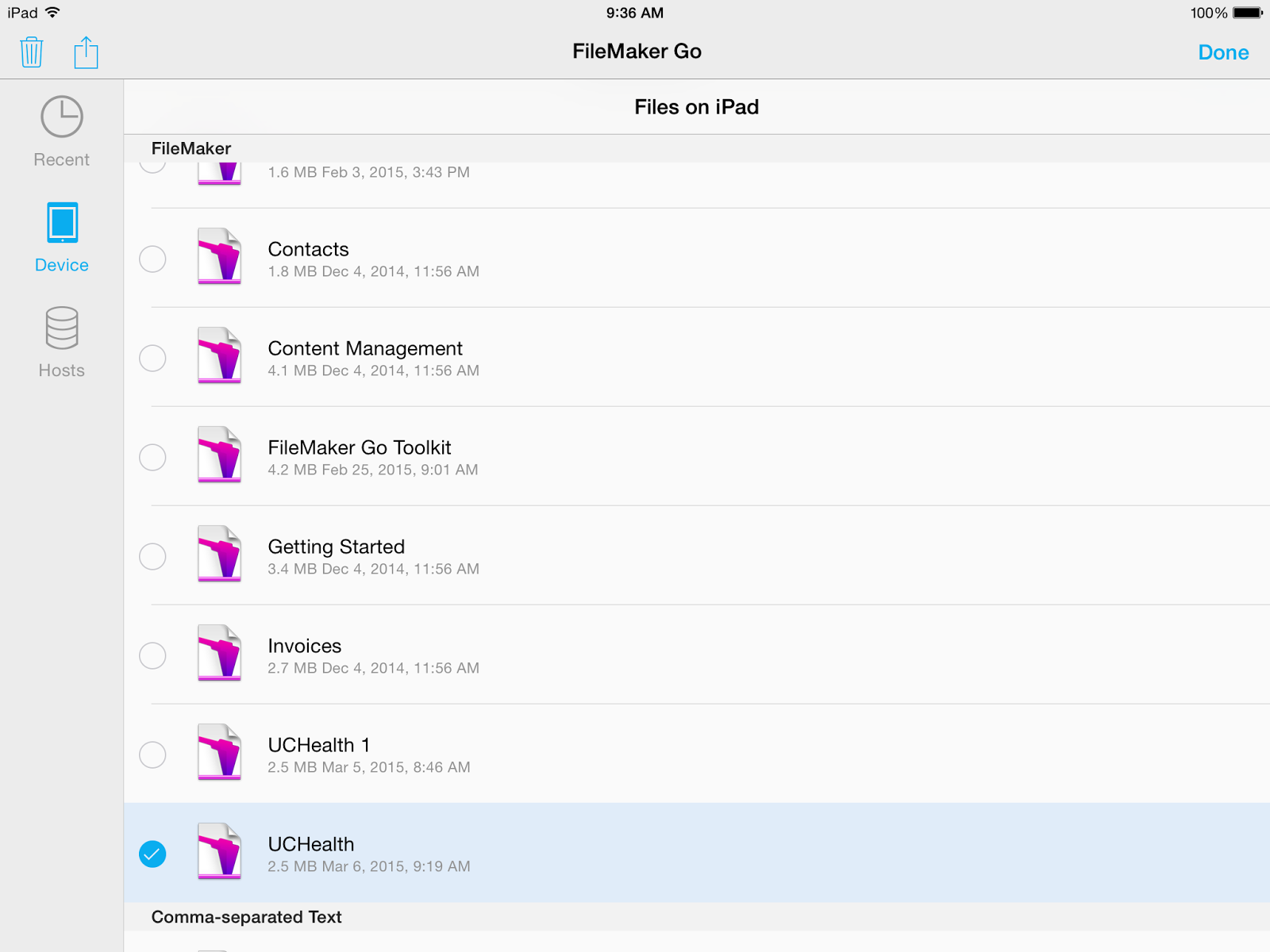
3. In FileMaker Go, choose “Device” This will show the list of files that on the iPad.
6. Choose “Open in Dropbox”
7. Choose “Save”
Depending on the size of the file there may be a delay as the file is copied to the Dropbox. And of course, this process doesn’t work unless you are connected to the network.
This whole process isn’t elegant, and is only workable for a single person moving files around. But it works.
Better than eMail: Slack for Workgroup Communication
We’re slacking off here at our non-profit organization, having discovered Slack, a cloud-based communication application that combines the functions of eMail, chat, a bit of artificial intelligence (called the Slackbot), and the ability to exchange transactions with a growing number of third-party applications including the Trello project manager. Slack solves the problem of team communication for specific topics or projects.
Let’s say you are launching an e-Shop. You have the web developer, the graphic designer, the photographer, the shop manager, the back-end developer and the testers working on the project. You have calendar schedules, product photos, text copy, html and .css files all in half-a-dozen sites and places; Google Drive, Trello, your calendar, the file server, the production web site, and the sandbox web site. All this is glued together using eMails with copies to the team… each person has their own copy of the email (you hope), and relevant attachments or links to files on Google Drive, Dropbox, your web server, or your file server. Its all a bit diffuse, and if anyone wanted to come up to speed on the whole project, then it would probably be pretty tough, because everything about the project isn’t in one place.
Nine years ago, I was using Basecamp for several projects including grant applications. I have used Basecamp for many years, and sung its praises for writing grants, which is by nature a collaborative process with multiple players. About 2012, Basecamp got a major upgrade which seemed to break my workflow and processes. So, I started looking around at the alternatives, and there are a bunch.
The basic unit of Slack is the team.
Teams can create channels. Channels can be for a single department, or a single project. So, for our team we created a channel for each department:
- creative
- development
- admin
- it
- programs
with fonts and bullets.
For current projects that cross individual departments, we created specific channels.
- eStore-Launch
- XYZ Grant Application
- 2015 Audit
Kim Klein on Attitudes Toward Money
The idea of asking for money raises another set of hindering attitudes, which are largely the inheritance of a predominantly Protestant culture infused with a Puritan ethic that affects most Americans, including those who are not Protestants. This set of values conveys a number of messages that influence our feelings and actions. For example, a Puritan ethic implies that if you are a good person and you work hard you will get what you deserve. It further implies that if you have to ask for something you are a weak person because strong people are self-sufficient. Further, most likely you have not worked hard enough and you probably don’t deserve whatever you are asking for. Rounding out this series of beliefs is our deep distrust in the ability of government to solve social problems and a general convictions that the government wastes our money in unnecessary and inefficient bureaucratic red tape.
All of these beliefs can be found among people on both the left and right sides of the political spectrum as well as across age and race lines and different religious orientations. Where these beliefs will not be found is in two places:
- Other countries. Although many countries have various taboos related to money, none have as many contradictory ones as the United States. Our taboos about talking and learning about money are not universal.
- Children. Children have no trouble asking for money. They do not subscribe to the idea that self-sufficiency means not asking or that polite people don’t ask. They ask, and the ask again and again. Our taboos about money are not natural–we are not born with them.
Our beliefs about money are learned, and therefore they can be unlearned. The wonderful writer Ursula Le Guin once said in a lecture, “I never learned much from my teachers, but I learned a great deal from my un-teachers; the people who said to me, ‘You shouldn’t have learned that and you don’t need to think it anymore.'”
Fundraising for social change is in part about raising the money we need, but over a longer period of time it is also about creating healthy attitudes toward money, and many people find that aspect of fundraising to be most fascinating.
I’d love to quote the entire chapter, but that wouldn’t be a blog post, it would be plagiarism! Instead, I suggest you check out the book yourself, her other books, and resources.
Manage Linux Log Files
missingok
notifempty
sharedscripts
postrotate
/sbin/service httpd reload > /dev/null 2>/dev/null || true
endscript
Reading the logs for user log-ins.
Odds and Sods: Resurrection, DocBoxes
After much fiddling, I seem to have been able to get my domain techfornonprofits.com to map directly to this blog, which is hosted with bloodspot.com. For a week or two it seemed it was lost in the ether, and I’m still not exactly sure what fix finally was. But, between Google/Blogger, and my domain host at Network Solutions, it looks as if the DNS records have finally got sorted out. Techfornonprofits, the blog was started when the Blogger program was relatively new, before it was purchased by Google. My first entry was in February of 2001 which seems like ancient history now.
I’m trying to sell a few DocBoxes. These are industrial-strength Mini-Itx machines originally sourced from Logic Supply. The have AOpen cases and motherboards, using Intel Celeron chips, with 1 meg of memory, a 60 or 80 Gig hard drive, and a CD or DVD-ROM. I originally had them loaded with Windows XP embedded, or Windows 7 embedded, but have reformatted them to use Xubuntu, which is Ubuntu configured to use the XCFE interface, a lightweight front end which seems to work well with the limited 1 meg of RAM on these machines. The best thing that I liked about this was a stock installation of Xubuntu automatically found the wireless network interface, and my wireless router and my printer. With XP and Windows 7 I had to go rooting around to find drivers for both of these things.
Nothing precludes running the boxes on Windows…I’ve tried it with a stock Windows 7 Professional installation as well as the embedded versions. In their original lives, they were running Windows XP Embedded. The units might have a number of applications:
- Granny or kiddie workstation
- Thin client
- Industrial controller
- Process controller
- Mini file or media server
- Lightweight web server
The picture shows the docbox with a Logitech Orbit camera on top, which was the original configuration. I’m experimenting with how best to advertise and sell these, with a couple options, Craigslist, eBay via Global Garage, a third-party seller, and Do-It-Myself eBay.
Powershell: Limit API iterations in a single call
Problem:
Many APIs limit the number of iterations that you can make in a single API call. For example, Brightpearl limits you to getting information for a maximum of 200 orders in a single API call. If you place a call with more than 200 orders, it will simply return an error message. SmartyStreets also places a limit of 100 addresses that you can validate with a single API call.
Solution:
Dave Wyatt at PowerShell.org provides the following solution.
Lets assume there is an array of 1000 addresses which are returned by convertfrom-csv. Here are the first couple of records from the original .csv file.
PS>cat lapsed.csv Addressee,first,spouse,Organization,Street,City,State,ZIP Joe Dokes,Joe, Mary,,,601 W 57TH St Apt 361,New York,NY,10019 Mary Smith ,Mary,Howard,,347 Poor Farm Rd,Colchester,VT,05446 Lu-Anne Jorden,Lu-Anne,Jess,,9603 North Kiowa Rd.,Parker,CO,80138
Here is the command that we use to read in the list into the variable $bigLlist
$bigList =(cat lapsed.csv | convertfrom-csv | Select-Object Addressee, Organization, Street, City, State, Zip )
$bigList is a custom object with the following layout:
PS>$biglist | get-member
TypeName: Selected.System.Management.Automation.PSCustomObject
Name MemberType Definition ---- ---------- ---------- Equals Method bool Equals(System.Object obj) GetHashCode Method int GetHashCode() GetType Method type GetType() ToString Method string ToString() Addressee NoteProperty System.String Addressee=Kamal Aboul-Hosn City NoteProperty System.String City=New York Organization NoteProperty System.String Organization= State NoteProperty System.String State=NY Street NoteProperty System.String Street=601 W 57TH St Apt 361 ZIP NoteProperty System.String ZIP=10019
If you look at this in Powershell, it prints out the contents of each record.
Addressee : Joe Dokes Organization : Street : 109 Fern Ct. City : Delray Beach State : FL ZIP : 33444 Addressee : Mary Smith Organization : Street : 205 Dorado Dr City : Cherry Hill State : NJ ZIP : 08034 Addressee : Lu-Anne Jorden Organization : Street : PO Box 81666 City : Fairbanks State : AK ZIP : 99708
Ok, so now we have the full list as an object. The list now needs to be subdivided into groups of 100.
$counter = @{ Value = 0 }
$groupSize = 100
$groups = $bigList | Group-Object -Property { [math]::Floor($counter.Value++ / $groupSize) }
The $counter variable is a hash table, initialized to zero.
The $groupsize variable is the size of the individual group that can be sent. In our example it is set to 100, for a maximum of 100 addresses to be sent at a time.
The $groups variable creates a custom object, with the following members:
PS>$groups | gm
TypeName: Microsoft.PowerShell.Commands.GroupInfo
Name MemberType Definition
---- ---------- ----------
Equals Method bool Equals(System.Object obj)
GetHashCode Method int GetHashCode()
GetType Method type GetType()
ToString Method string ToString()
Count Property int Count {get;}
Group Property System.Collections.ObjectModel.Collection[psobject] Group {get;}
Name Property string Name {get;}
Values Property System.Collections.ArrayList Values {get;}
If you print out the contents of $groups, you see the following list. (I’ve truncated for readability…)
PS>$groups
Count Name Group
----- ---- -----
100 0 {@{Addressee=Kamal Aboul-Hosn; Organization=; ...
100 1 {@{Addressee=Chandler Dawson; Organization=; ...
100 2 {@{Addressee=Sidsel Heney; Organization=; ...
100 3 {@{Addressee=John Marchetti; Organization=; ...
100 4 {@{Addressee=Jane Ramsey; Organization=; ...
59 5 {@{Addressee=James Tulloh; Organization=; ...
This shows that I have 559 names in the original file which has been divided up into 5 groups of 100 and one of 59 names.
The next and final step is to iterate through each group and make the API call.
foreach ($group in $groups)
{
$littleList = $group.Group | ConvertTo-Json
$Output = Invoke-RestMethod -Uri $Uri -Body $littlelist -ContentType application/json -Method Post
}
The steps are:
For each group
Convert the addresses in one group to JSON
Assign it to the variable $littlelist
Send the contents of $littlelist as the body of the API call.
End Loop.
Debugging in PowerShell
The PowerShell integrated scripting environment (ISE) has many of the trappings of a full-fledged programming GUI, including a capability for debugging with breakpoints. There is a TechNet article on debugging from which this discussion is cribbed. The ISE has a subset of the command-driven breakpoint capability, in that it only allows the setting of line breakpoints. In the command environment, you can also set variable breakpoints, which execute when the value of a variable changes, and command breakpoints, which execute when a certain command is reached.
Breakpoints can only be set for a script that has been saved.
In the ISE window a breakpoint can be set from the debug menu, (Toggle Breakpoint) or by pressing F9 when the cursor is on the line that you want to use for the breakpoint. Once set, the line will be highlighted.
After setting a least one breakpoint, you can run the single-stepper. This executes the script one line at time.
Step Into: Executes the current statement and stop at the next statement. If the statement is a function or script, it goes into the function or script and then stops. F11
Step Over: Execute the current statement and stop at the next statement. If the statement calls a function or script, it executes the function or script and then returns to the next statement in the original script. F10
Step Out: Executes the current function and then returns to the level above in the call stack. If there are statements remaining in the sub-function, those are executed before the return. Essentially this is something like “finish running this function, and return…”
Continue: Execute to the next breakpoint without single-stepping.
What I’ve been doing as I’ve been learning PowerShell is single stepping through a script, which allows me to look at the effect of a single statement before moving on to the next statement. This involves setting a breakpoint a the top of the script, and then hitting F11 to toggle through the script.
Calling sub-scripts.
Scripts can be called from other scripts using the Invoke-Expression commandlet. Example:
Invoke-Expression -Command ./PSFTPDEMO.ps1
If the subscript is located in the current working directory, or within the same directory as the main script, it needs to be prefaced with the ./ path as shown above.
The subscript inherits all variables from the main script unless those variables are declared private in the main script.
PowerShell: Formatting Dates
In Brightpearl, if you want to select orders from a specific date, the date needs to be entered in the format of YYYY-MM-DD. By default PowerShell returns dates in a format based on your “culture” setting; in the U.S. this means the default is MM-DD-YYYY. (Who made this up by the way?) In fact…a standard call to the Get-Date returns a “long date / time” string.
PS>Get-Date
Thursday, November 20, 2014 12:46:19 PM
To just get the date, you add a couple parameters:
PS>Get-Date -DisplayHint Date -Format d
11/20/2014
This returns the system date in the default culture format.
To transform this to YY-MM-DD, there is a parameter which takes a Unix format string.
PS>Get-Date -UFormat %Y-%m-%d
2014-11-20
TechNet has a reference for all of the possible combinations and strings for the UFormat parameter.
Here’s the format for an order search using a hard coded date.
PS>$BPOrders=Invoke-RestMethod `
-Uri http://ws-use.brightpearl.com/public-api/nationalgardening/order-service/order-search?placedOn=2014-11-20 `
-Headers $headers `
-Method Get
We can put the date in a variable, and use that in the API call:
$Today=Get-Date -UFormat %Y-%m-%d
$BPOrders=Invoke-RestMethod `
-Uri http://ws-use.brightpearl.com/public-api/nationalgardening/order-service/order-search?placedOn=$Today `
-Headers $headers `
-Method Get
Odds and Sods
FileMaker 13 is back at Tech Soup. A one-year subscription to FileMaker Server is $649. A full license for FileMaker Pro (the desktop client) is $194. Unfortunately, they don’t offer non-profit pricing for FileMaker Pro Advanced at TechSoup, but you can inquire directly at FileMaker, where there are frequent deals. During November they are offering a 2 for 1 deal for FM Pro and FM Advanced when you buy direct.
PITA of the week: The new OSX Yosemite transmits search data by default to Apple, Microsoft, and god-knows-where. This is a reversal from previous versions of OSX. There is a fix.
Powershell is turning out to be pretty amazing. There is an entertaining introductory video series from Microsoft Virtual Academy which includes Jeffery Snover, the original PowerShell author who explains why they do things the way they do.
Ozzie Zehner is a green-technology skeptic, in the sense that he suggests that our infatuation with alternative energy like photovoltaics and windmills really perpetuates the energy status quo. His top suggestions for committed environmentalists; empower women and girls.
Green Illusions pioneers a critique of alternative energy from an environmental perspective, arguing concerned citizens should instead focus on walkable communities, improved consumption, governance, and most notably, women’s rights.