Author Archives: lkeyes70

Grantwriting: The Evolving Toolkit

I’ve just uploaded, for the fourth time, a research grant application to the National Institutes of Health (NIH), and it appears that this time it has managed to get through the many layers of checks, and so now has been accepted by the Electron Gods.

Like most grant applications, this was a team effort. There were two principal writers and a number of additional contributors. Each collaborator needed to submit a “biosketch”, which in NIH-ease is a highly stylized resume as well as a letter of support stating their affiliated institution or company, the scope of the services they would provide, and agreement to our payment arrangements.

For the first time, I managed this entire process using my Mac and the Pages word-processor, without having to default back to a Windows machine using Office Word. The only awkwardness, which, in hindsight might have been avoided, was extracting the list of footnotes and citations so that the body of the research plan which has all the footnotes, could be saved as a single Adobe .PDF document, while the actual citations were saved in a separate .PDF. If contributors didn’t have a Mac, then I asked them to submit information as Word documents, using Arial 11 point body text on pages with .5 inch margins. These opened up fine within Pages, and could then be modified and then “printed” to an Adobe .PDF.

We used BaseCamp as our project manager. Over the course of about six weeks, we posted over 100 individual files, in various formats.  I used the BaseCamp tasklist most of all, along with the milestones.

In the best of all possible worlds, all the writers would submit documents through BaseCamp.  In practice they would usually eMail Word attachments directly to me.  I would convert these to .PDF files and post those on BaseCamp for everyone else to look at. Once they were in finished form, I kept final .PDFs these in a series of folders on my iDisk, which provided a safe repository and access from my computers in the office and at home.

The 30, er, 150 dollar Windows Computer Revisited

Almost exactly a year ago I experimented with getting some older Dell SX270 and SX280 machines off of eBay for between $30-$75 with the thought of turning these into low-end workstations. The experiment failed… one machine was dead on arrival, one was noisy, and one worked for a little while, but then seemed to fail as well.

Optiplex 270

So I was a little surprised to find some swapped-out Optiplex GX270s, which, while not as compact as the SX boxes, seem to have a lot of life in them.  They aren’t young… they were built in 2004 and first delivered to an insurance company which then recycled them sometime around 2007. But they have 2.6 or 2.8Ghz Intel processors, 40 megabyte hard drives, 1 gig of RAM, and most them of them, nine out of ten or so, are silent. The one deficiency that I can find is that the USB ports are not the fastest, so some peripherals that expect a USB 2.0 interface may not work. This issue came up with connecting to an iPod media player.

Looking at eBay again, I see a number of these selling in the $75.00 range, with various case styles and memory. Most include a Windows XP sticker, which means if they don’t have Windows already installed, there is a legal installation number available. The machines also work well Ubuntu Linux as a desktop operating system, and I’m using a couple as FreeNAS file servers. A colleague is giving one to an senior member at his church. They are like candy… you can just pass them out.

OK…the $30.00 figure for a Windows computer is a little like The Four-Hour Workweek. In this case, I managed to get a dozen of these machines for free, when we upgraded to new Windows 7 machines from Dell. In the Real World, they might cost more, and I think I may just have lucked out (finally). On the other hand, similar machines might be available from other larger companies who are upgrading. My original premise that you might be able to get a Windows workstation or small file server with some sweat equity and maybe $150 or so, now seems within reach.  When you have more time than money …

Odds and Sods

Installed the FreeNAS server yesterday in our student lab. Looks promising.

Don Lancaster has now created a free PDF version of his classic book, The Incredible Secret Money Machine. Get yours here.

It turns out that the same day all the ruckus was going on regarding the new TSA scanners, I was flying out from Philadelphia and got myself scanned. The whole thing seemed weird…even after getting scanned I got an upper body pat-down. By the time I’ve removed my jacket, shoes, belt watch, and emptied my pockets you begin to think it would be easier just to shuck off everything. The whole thing seems unreasonable. It would help if there was some trustworthy evidence presented that would document the effectiveness of all these security measures.

Keep up with all things Skype with the Skype Journal Blog

LifeHacker did a comparison of desktop videoconferencing apps. Not very rigorous, but is interesting nonetheless. I tried FaceTime on my mac, but wasn’t that impressed compared to iChat. Obviously if I had an iPhone it might be a different matter. Frankly, we’ve had really good luck with Skype and it works on Macs and Windows.

FreeNAS: Automate Drive Mappings for Windows Users

This is the third in a series about FreeNAS, the free network attached storage application which allows you to create an inexpensive but highly capable network file server for backups, iTunes, and general file sharing. Our application is a server for student data. We want to give each student a secure folder in which to store files that they create and use when working in our student computer labs.  The two previous postings are:

Creating a FreeNAS server for student data

Adding students and creating folders 

Note that the first link picks up at the point that the FreeNAS server software has been installed on to server hardware with a minimal configuration. The FreeNAS web site has links to several tutorials as well as the official setup guide.

By the way, FreeNAS installs really nicely within a virtual machine so you can easily test it out. I’ve got it running in Parallels on my MacBook, with software RAID 5 providing redundant disk storage.

Mapping a drive to a student folder

Once I set up the student’s folder and account on the FreeNAS server, I wanted to be able to give them the opportunity to access it from any workstation in our student lab.  The cleanest way I could think of was to create an icon on the desktop which runs a script. The script does the following:
1. Asks for the student login name
2. Asks for the student’s password
3. Maps the H: drive to the student’s folder on the FreeNAS server.

Student folders are named exactly the same as the student login, and they all appear under a shared folder called “StudentData”.  The full path is /mnt/StudentData/.  So, when student Myron Kapoodle logs in with his user name mkapoodle, the script takes him to: 

/mnt/StudentData/mkapoodle

Thus, when the student accesses drive H:, they find themselves in their own folder. They can’t select a folder “above” their own, and they can’t access anyone else’s folder, even if they can see it when browsing around the network neighborhood.

The Script

' VBScript to map a network drive.
' Heavily borrowed from ....
' Guy Thomas http://computerperformance.co.uk/
' Larry Keyes www.techfornonprofits.com
' ------------------------------------------------------'
Option Explicit
Dim strDriveLetter, strRemotePath, strUser, strPassword
Dim objNetwork, objShell, objFSO
Dim CheckDrive, AlreadyConnected, intDrive
strUser=""
strPassword=""

' This section gets the name and password
strUser=InputBox("Enter your User Name")
strPassword=InputBox("Enter your Password")

' The section sets the variables.
strDriveLetter = "H:"
strRemotePath = "\\freenas\StudentData\" & strUser

' This sections creates two objects:
' objShell and objNetwork and counts the drives
Set objShell = WScript.CreateObject("WScript.Shell")
Set objNetwork = WScript.CreateObject("WScript.Network")
Set objFSO = WScript.CreateObject("Scripting.FileSystemObject")
Set CheckDrive = objNetwork.EnumNetworkDrives()

If objFSO.DriveExists(strDriveLetter) Then
objShell.Popup "The H: Drive is already mapped"
objNetwork.RemoveNetworkDrive strDriveLetter
strRemotePath = "\\freenas\StudentData\" & strUser
objNetwork.MapNetworkDrive strDriveLetter, strRemotePath , false, strUser, strPassword
Else
strRemotePath = "\\freenas\StudentData\" & strUser
objNetwork.MapNetworkDrive strDriveLetter, strRemotePath , false, strUser, strPassword
End if

'Section which actually (re)names the Mapped Drive to eliminate naming problem.
Set objShell = CreateObject("Shell.Application")
objShell.NameSpace(strDriveLetter & "\").Self.Name = strUser
Wscript.Echo "Check : "& strDriveLetter & " for " & strUser
WScript.Quit

There is some extra stuff in there that attempts to fix an issue that appeared in Windows 7, where if the drive mapping is reused, it shows up with the name of the previous user.

Our student workstations have a single “student” local account.  Every student logs in to that account when they use the workstation. There are no individual user profiles. In some cases I have the student account log in automatically, and I’ll probably do this on all machines that use the FreeNAS network so that a student doesn’t have to log in twice…once to the desktop and once with their own user name and password on the FreeNAS server.

This script should be installed on each Windows workstation, with a desktop icon to appear on the desktop of the student account.

Two other observations and questions:

1. Obviously you can simply map a drive from the command line using Start->Run->CMD, and then at the prompt  type MAP H: /freeNAS/StudentData/mkapoodle.

2. I searched all over for a more elegant way to have a screen that came up that would ask for the name and password and then make the call to create the drive mapping. First I looked at C#, then, because Visual Basic has a “shell” command, I switched to VB. However that required a full-blown Windows installation of the .exe file, as well as a batch file which was called by the VB program. I finally decided I could live with two windows popping up; one asking for the name and another for the password.

freeNAS File Server for Student Data – Adding Students

Last time I talked about freeNAS, the free Network Attached Storage application that allows you to easily create a file server.  There are several sites online which have documentation on how to get a freeNAS server up and running. What I hadn’t found was much information about how to create a secure multi-user environment to allow students to save their data.  Here are the specs:

1. Students will access the server from a Windows XP or Windows 7 workstation
2. Students will use a mapped drive to access the freeNAS server
3. Students will have their own dedicated folder.
4. Students will be restricted to their own folder, and any subfolders that they create.
5. Students are issued a user name and password for the freeNAS password

Initial steps to prepare the server: using the freeNAS web page
1. Create a mount point on the server.  I called mine “StudentData”
2. From the Services Menu, Select CIFS
3. Create a folder share using the StudentData as the name, and the StudentData mount point.
4. From the Access menu create an access group called “Students”.

Using the freeNAS console –
3. Select 6 from menu to get to a shell prompt
4. Change to the “root” of the mounted volume.
cd /mnt/StudentData
5. Allow everyone to traverse the directory, but not to change or execute, only the root (supervisor) can delete or add.
chmod 711 /mnt/StudentData
chown root /mnt/StudentData

Organize the student user names and passwords
1. Get the full name of each student.
2. Assign passwords to each student.
3. Assign the login name for each student.  I use the first initial and last name
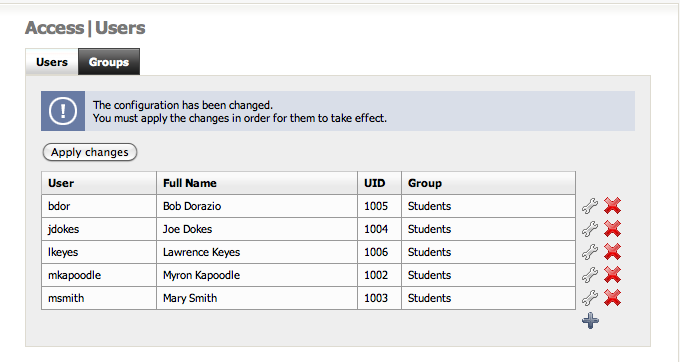
4. Add the student within the Gui under Access : Users and Groups
5. Add the student’s login name, and password
6. Assign the student’s home folder as /mnt/StudentData/ Note that the folder does not have to physically exist yet, although if you want to be able to choose the correct folder from the drop down box, it needs to be created on the disk beforehand. 
7. Save changes
8. Be sure to save the changes clicking on the button “Apply Changes”.

At the freeNAS console:
4. Create a folder on the server with the same name as the login name.
Example: I have a student named Myron Kapoodle, this person will get a folder called mkapoodle.

mdir /mnt/StudentData/mkapoodle

5. Give the student ownership of their folder, and allow the owner to read/write/execute within their folder.

chmod 700 /mnt/StudentData/mkapoodle
chown mkapoodle /mnt/StudentData/mkapoodle

6. At this point, the folder should be accessible from the network.  For example, from a Windows machine you can map a drive …

MAP H: \\freeNAS\StudentServer\mkapoodle
You’ll have to enter the name and password.
This may not be entirely foolproof in a lab situation with numerous students accessing the same workstation, so I’ve developed at least a partial solution which I’ll outline in a future post.

freeNAS File Server for Student Data

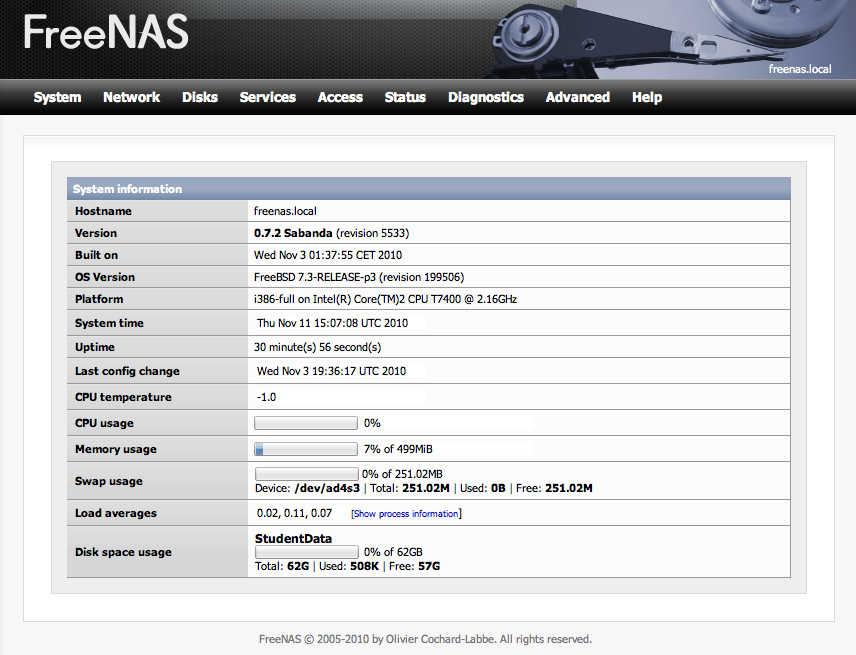
FreeNAS is an open source file server program based on BSD Unix. It is available as an .ISO file for downloading and burning to a CD. It will work in 256Kb of memory. While freeNAS is ideal as a “home” server using an older PC, it scales to modern server hardware. Out of the box it provides software RAID (provision for redundant disks) and it can work as a server for Windows, Apple Macintoshes, or Linux workstations. There are several installation guides available, and you can have a basic Windows server up and running within thirty minutes. Here’s a look at the opening screen in the web management program. (Click the image to enlarge).

I’ve  installed it twice; once within a Parallels virtual machine on my MacBook Pro, and once on an older Dell Optiplex G270.

We are considering using freeNAS as a server for student work within one of our learning centers. Currently, students are save their files on USB thumb drives, but that seems to be a poor solution; the drives get lost, or infected with viruses. We don’t want the students on the “administration” network, so we are looking for alternatives. FreeNAS seems to be a good alternative to another Windows server. Our plan is to give students accounts on a FreeNAS server, which will give them a single folder that they can access from Windows XP and Windows 7 desktop machines, or Windows 7 laptops over a wireless network.

Most installation guides assume you are creating a home server for Windows workstations, and they bring you to the point to where any workstation can find the server, connect to it and store files. Our application requires that individual students have their own folder on the server, and that they cannot access anything else outside of that folder.  Further, we want the student to be able to log into the server independently of the local Windows workstation account. We don’t want to create separate profiles on each workstation for each student, because their is no guarantee that the student logs into the server from the same workstation each time.  The plan is to have the student map a drive letter to their freeNAS folder using a connection script that automates the NET USE command.

In addition to the link above, there is another more detailed installation guide at daily-cup-of-tech.

Skype 5.0 with Multipoint Video


The latest Skype, version 5.0 for Windows includes multi-point videoconferencing. We’ve tried it with up to four participants, and it works surprisingly well.  Skype fan-persons are waiting to figure out what the actual cost of this might be; right now multipoint is available for a 28 day free trial.  Point-to-point video calling works very well; on a par with the Polycom PVX application. We have tested on a variety of Windows platforms; Windows XP embedded, XP Pro, and Windows 7 Home and Pro with good and consistent results.  The interface is kind of a mess; but once the calls are connected, sound and video are outstanding. Like everyone else they are trying to integrate with FaceBook in version 5. 

Unfortunately, version 5 for some reason does not include the setting for receiving video calls full screen. So, our favorite application is broken in this version. Back to version 4.8!  
Linux and Mac versions of the Skype program are still miles behind the Windows version.  Multipoint video is promised soon for the Mac.  I have this fantasy, of a Linux version, with multi-point video, with a programmable interface that would allow stripping out all of the directory and calling stuff, and simply allow people to receive full-screen video calls.  Will this ever happen?

We’re also eagerly awaiting the SkypeKit, an updated version of the Skype API which should allow programmers to do wonderful things with Skype. Early beta users have been working on Skype TV applications that are embedded with some new televisions. We’d love to take part in the beta, but after being on the waiting list for some weeks, we are beginning to think we’ll never get the chance.  SkypeKit is due to be released in the first quarter of the new year. 

BaseCamp: Project Template for Federal Grants

Having worked on several NIH grant applications using BaseCamp to keep track of all the bits and pieces, I’ve started to put together a BaseCamp project template that covers the workflow and components of the application. Here is what I’ve come up with so far for the task lists:

Related milestone: Initial Setup Complete
Verify DUNS number
Verify CCR Registration
Verify Grants.Gov Registration
Verify NIH Commons Registration
Establish Timeline (Grant Application Workflow)
Create working Project Summary (Abstract)
Solicit project partners
Negotiate partner relationships, PI, Co-PI, applicant organization, etc.
Post Solicitation Link
Download PDF Fill-In Forms
A budget must be prepared for each budget year, and must be prepared for any sub-awards. So, for a two year project, with a prime and a subcontract there will actually be four “budgets” that are entered on the Grants.Gov site. Also, note that the format is unique, and there are specific line items that won’t necessarily correspond to items that you create on your own budget spreadsheet.
Budget Year 1
Budget – subsequent years
Budget Sub-Awards
Budget Justification
Biosketches should be submitted in the agency-specific format. For example, there are specific formats for NIH, NSF and DOD. Biosketches should be submitted as Adobe PDF files.
PI Mary Smith
Co-Pi Joe Blow
Senior Research Partner — M. Mouse Ph.D.
Biostatistician David Copperfield
List people and institutions from whom you have requested letters of support. Check these off when received. Letters of support should be printed on institutional letterhead, must be signed and then scanned to PDF as they’ll be uploaded to Grants.gov. Collaborators, constituents and stakeholders should include relevant specific information. Subaward partners must submit a letter of support stating their scope of work, signed by an authorized official of the institution. See more at http://blog.techfornonprofits.com/2010/02/grantwriting-letters-of-support.html
Institution ABC
Participant XYZ
Introduction ( 1 page max.)
Specific Aims ( 1 page max. )
Preliminary Data
Research Strategy (max 6 pages including graphics) Sections include Significance, Innovation and Approach
Biosketches for senior / key persons (4 page max each)
SBIR/STTR Information
PHS 398 Research Plan (see specific todo list, below)
PHS 398 Checklist
PHS 398 Cover Supplement
R&R Other Project Information
SF 424 (R&R) Cover Component
Multiple PI Leadership Plan
Timeline (Grant Performance)
Cover Letter
Research & Related (R&R) Project Performance / Site Locations
R&R Senior / Key Person Profiles (in addition to biosketches)
For NIH, evidence that these items are current and in order will not be asked for until the grant is actually approved. If they start asking about your finances and accounting system, that is a good sign.
Federal-Wide Assurance (FWA)
Institutional Review Board (IRB) Approval for Human Subjects
Approved Financial Accounting System

Browser Wars

Microsoft has a beta test version of Internet Explorer v. 9. available, and it is buggy. When I first installed it, it crashed on a regular basis. The solution appears to be to disable all of the add-ons that might have been present in IE 8. After doing this, the browser itself seems to work, but things like pop-up editing windows, and You-Tube don’t work.  Of interest is that installing the beta, seems to remove IE 8, so that you’re stuck with the buggy version 9, unless you use an alternative. Maybe my expectations are too high, but the beta seems to be pretty unstable.

Oops,   even with all the add-ins disabled it just crashed again.

For Windows browsing, I still like FireFox. Google Chrome appears to be a fast-gaining alternative which is available in a version for the Mac although on the Mac, so far, I’ve stuck with Safari which is also available on Windows.

With so much choice, it is refreshing to see the return of browsers to their rightful place as a lightweight application platform, as well as an information display utility. Perhaps this is the end of the trend by Microsoft to couple the browser so tightly to the underlying operating system, that you literally could never remove it entirely from a Windows installation. Internet Explorer has always been a major target for malware, trojans and viruses, and Microsoft never seemed to be capable of protecting users. The alternative browsers have flourished with attractive interfaces, standards compatibility, and effective countermeasures.

Certificate in Nonprofit Management: Fall Openings


Scholarships Available for Fall

Marlboro College’s Certificate in Nonprofit Management is an important investment in your professional development. This four-month, 10-workshop series will give you the tools to direct effective change in your community and in the world.
We strive to keep the tuition for our Professional Development Certificate reasonable. However, we recognize that even a small amount of financial aid can make a big difference. This semester we are pleased to offer three special scholarship programs: Partnership for Capacity Buildingmatching grants for students partially sponsored by their employers; Potash Hill Grants for Marlboro College alumni; and need-based Grants for Individuals.

Partnership for Capacity Building matching grants

Nonprofit organizations recognize that advanced training in leadership and management is critical to the competitive strength and ongoing vitality of the sector.  However, for some smaller organizations, meaningful investment in staff development can be financially challenging. Marlboro College created the Partnership for Capacity Building program to allow all stakeholders to join forces and build a more skilled, effective and confident workforce.  Talk to your employer about partnering for effective change.

Potash Hill alumni grants

Marlboro College is proud of the diverse and inspiring contributions its alumni have made to the nonprofit sector, and we are always delighted to welcome our graduates back for further training. If you have a Bachelor’s or Master’s degree from Marlboro, you are eligible for a Potash Hill alumni grant of $150 toward your Certificate tuition.

Grants for Individuals

We also have a limited amount of need-based aid available for students in difficult financial situations.

Work-Study

In addition to these scholarship programs, each semester we hire two students to serve as on-site coordinators for the program in exchange for a partial tuition waiver. If you are interested in exploring this option, please contact Kate Jellema at (802) 451-7510 or nonprofit@marlboro.edu.

Find out more…

_______________________________________

Kate Jellema, Director
Program in Nonprofit Management
Marlboro College Graduate School
28 Vernon Street
Brattleboro, Vermont 05301

phone 802 451 7510 | email katej@gradschool.marlboro.edu | web nonprofit.marlboro.edu

* now accepting applications for fall 2010 in Burlington and the Upper Valley *